Start Here
smutslut is the household's shared reading app: one Catalog and Library everyone reads from, plus a personal Shelf for each Reader. Sign in with the Reader account the admin created for you — there is no self-service sign-up.
What's shared, what's yours
The Catalog is every Author, Series, and Book smutslut knows about, whether or not anyone has the file yet — every romance.io Book plus your own local-only Books, not a partial slice of either. The Library is the subset with a downloadable file — and it is one shared Library for the whole household: the moment anyone acquires a Book, it is ready for every Reader, at no extra cost to get it again.
Your Shelf is different: it groups your own manual collections and Saved Searches with a set of automatic views built from your reading status, ratings, comments, tags, bookmarks, and watches. Nothing you do there changes what another Reader sees on theirs. Choose Shelf in the header (or the bottom tab bar on phone) to open it — it lists every Shelf you can open, starting with Recently Added, the whole Library newest-first. See Use Your Shelf for what each one shows.
Recently Added
Desktop
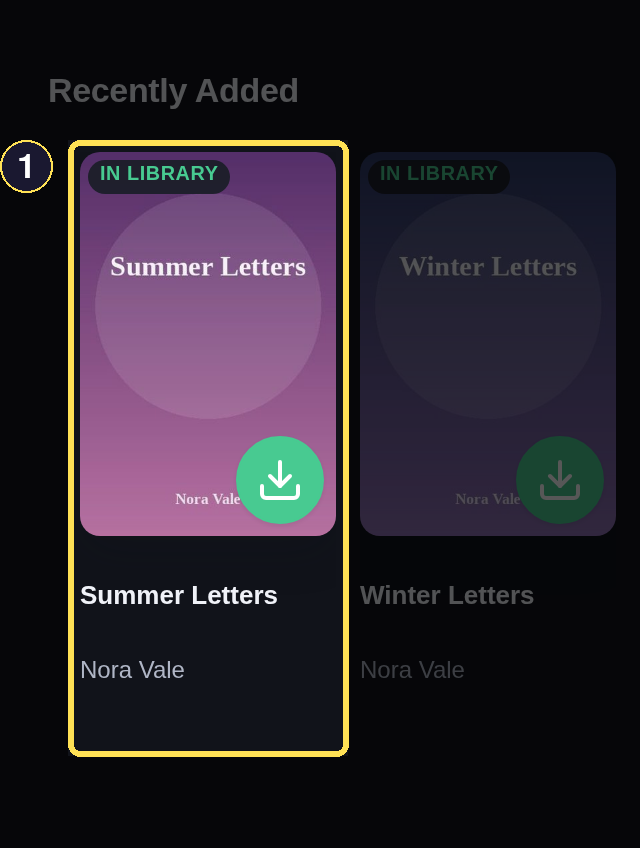
- Every card here is already in the Library, not just the Catalog.
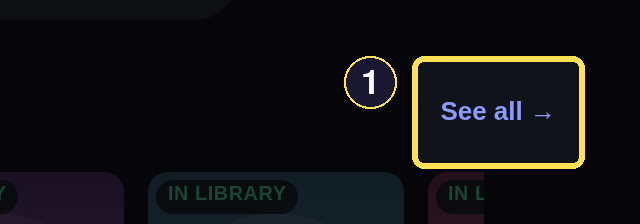
- See all → opens the full Recently Added list — the same Books, paginated newest first.
Phone
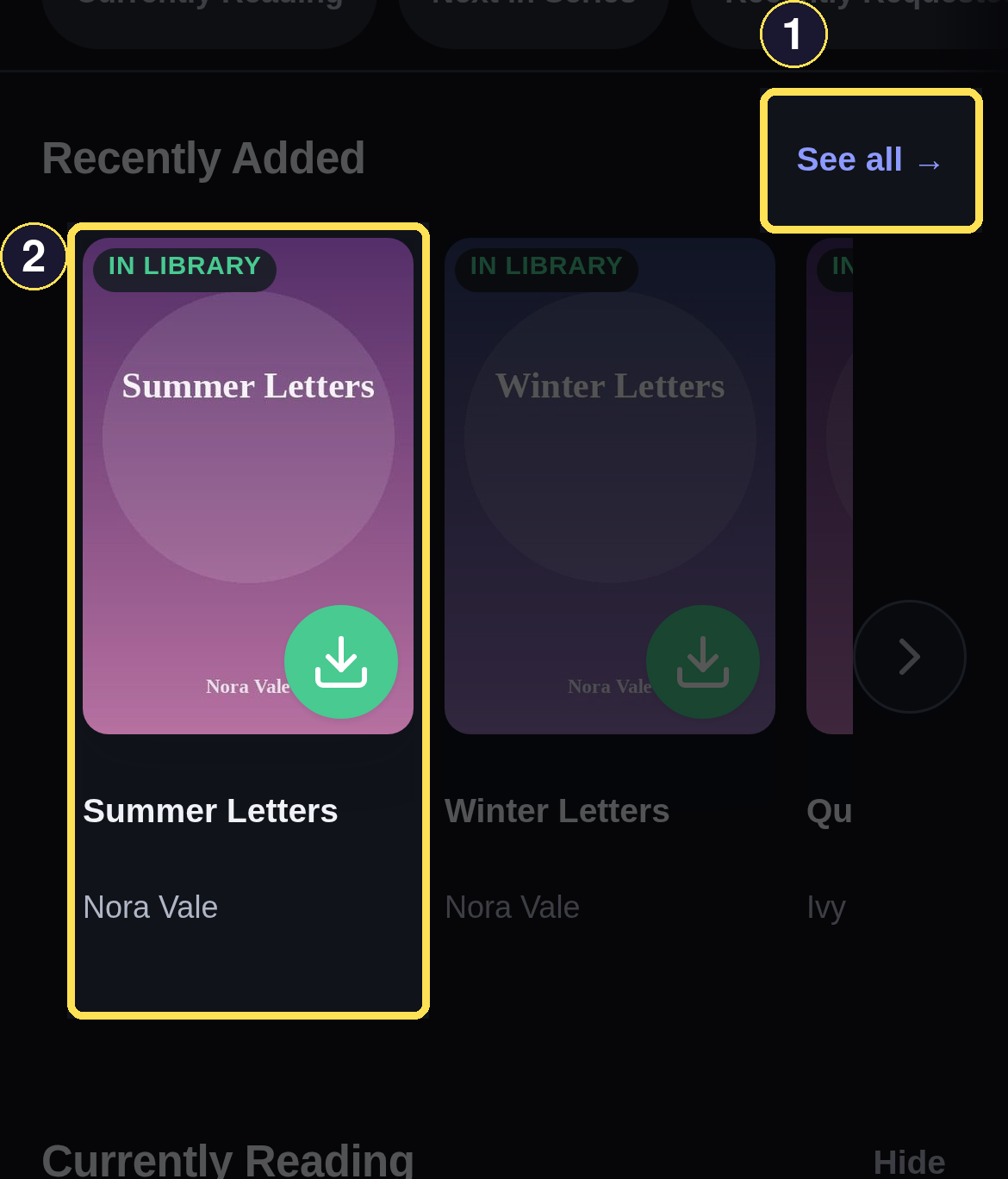
- See all → opens the full Recently Added list — the same Books, paginated newest first.
- Every card here is already in the Library, not just the Catalog.
Where each task lives
- Navigate the App — the header nav, bottom tab bar, More sheet, search, notifications, and your account.
- Find a Book — search the Catalog and romance.io, and read the results.
- Request Books and Series — ask for a file, or a whole series at once, and what each waiting state means.
- Library, File Shares, and Downloads — browse everything already acquired and get the file onto your device.
- Track Reading — set your status, record a finish, and fix a mistake.
- Use Your Shelf — what each Shelf section is and the order they appear in.
- Discover — recommendations picked from your own reading history.
- Bookmarks and Watch Releases — save a Book for later and get notified when a series continues.
- Notifications — what smutslut tells you about, and how to manage them.
- Profile and Appearance — your account details, theme, and light/dark mode.
- Report an Issue — tell the admin something's wrong.
- Reader Glossary — every term this guide uses, in one place.
Get a Book
Desktop
- Use Search the Catalog in the header, or choose Discover, to find a Book by title, author, or recommendation — see Navigate the App for where these controls live and Find a Book for how to read the results.
-
Select the Book to open its page, then choose Request under Get this book if it is not already in the Library.
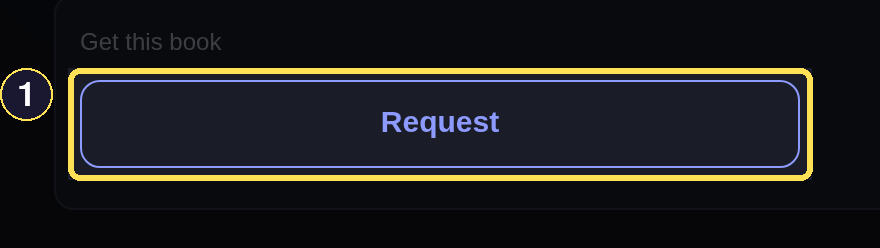
- Request appears when a Book has no file yet and no request already running.
-
Once it is ready, the same spot shows the green Checkout control — choose it to save the EPUB to your device. If a request doesn't settle right away, or fails, see Request Books and Series for what each waiting state means and what to do about it.
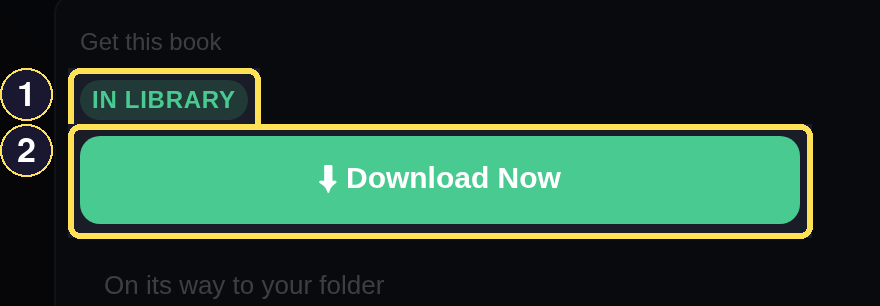
- In Library means the household already has this file.
- Checkout saves the EPUB to your device.
Phone
- Use the Search or Discover tab in the bottom bar to find a Book by title, author, or recommendation — see Navigate the App for where these controls live and Find a Book for how to read the results.
-
Select the Book to open its page, then choose Request under Get this book if it is not already in the Library.
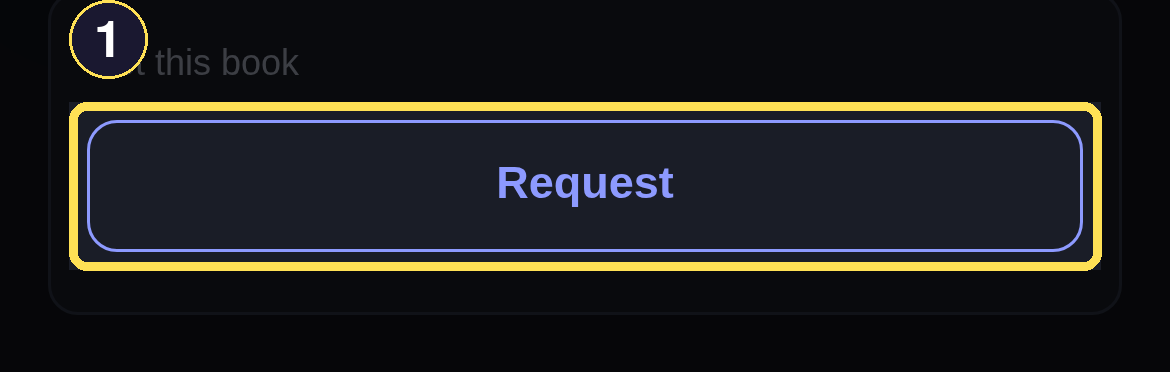
- Request appears when a Book has no file yet and no request already running.
-
Once it is ready, the same spot shows the green Checkout control — choose it to save the EPUB to your device. If a request doesn't settle right away, or fails, see Request Books and Series for what each waiting state means and what to do about it.
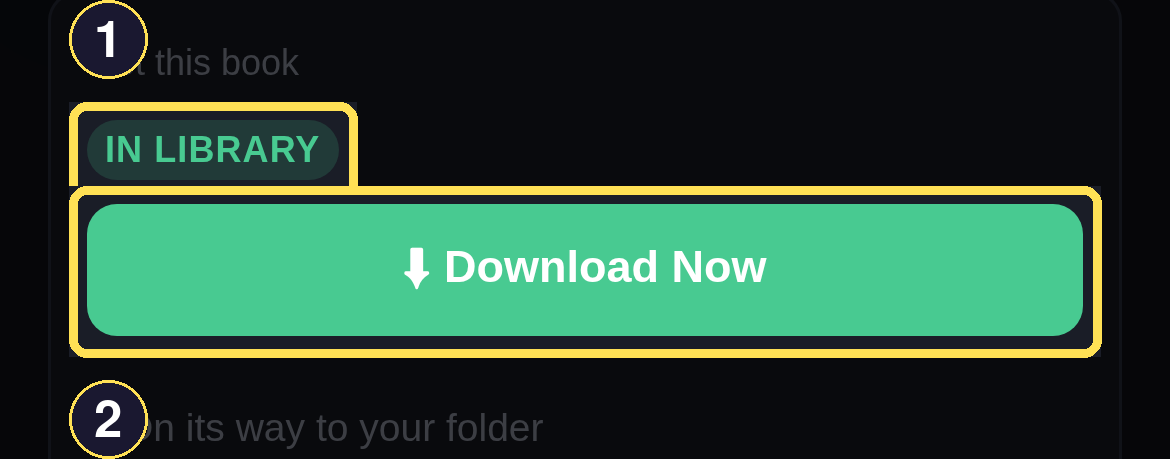
- In Library means the household already has this file.
- Checkout saves the EPUB to your device.
Keep your place
Downloading doesn't set a reading status for you — the file and your reading progress are recorded separately. Open the Book page's Your reading section and choose Reading yourself when you actually start it; it then shows as Currently Reading. When you finish, use Done reading and choose Finished or Did not finish — see Track Reading for the full walkthrough, including how to correct a mistake.
Desktop
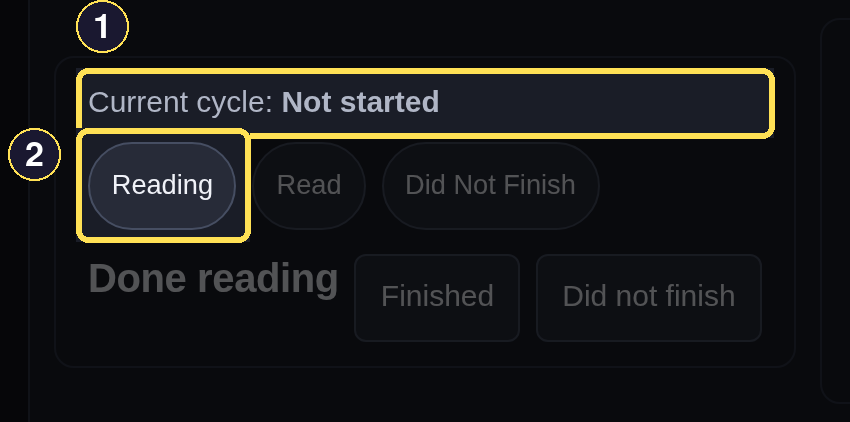
- Current cycle: Not started stays put until you choose a status yourself.
- Choose Reading to start your own cycle.
Phone
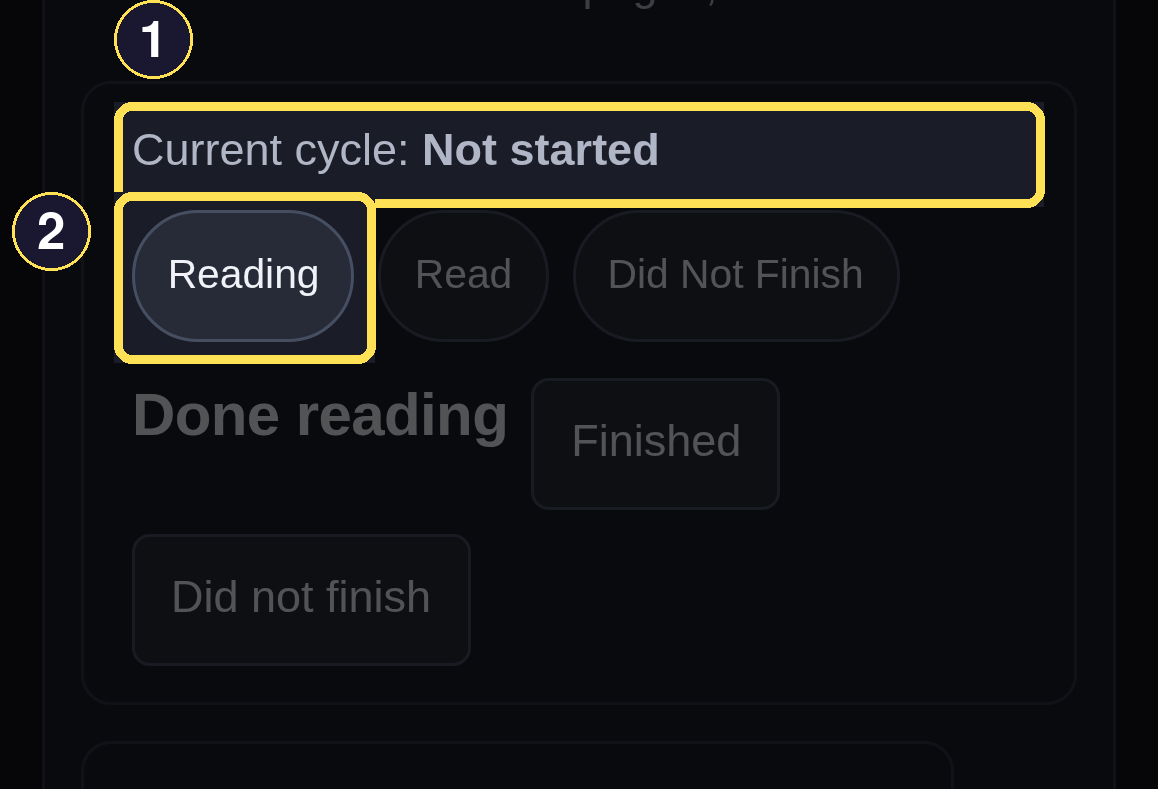
- Current cycle: Not started stays put until you choose a status yourself.
- Choose Reading to start your own cycle.
Related tasks
- Navigate the App — every nav control this page only glossed over.
- Find a Book — how to search and read the results.
- Track Reading — recording your progress after checkout.