Library, File Shares, and Downloads
The Library is shared: it holds every Book with an Acquired file, so a Book one Reader acquires is available to the whole household instantly. In place of Request, an Acquired Book shows a green Checkout control — in the Library or on its own Book page — that saves the file to your device.
Browse the shared Library
Desktop
-
Choose Library in the header. Type in Filter the Library to narrow by title, Author, Series, or your tags; the sort, grouping, and view options are visible inline below it.
-
Choose Sort to change the listing order — Author, Last added, Last read, Last published, Finished (newest), or Status.
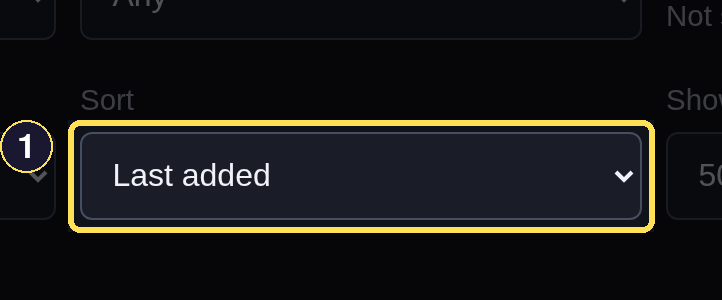
- Sort changes the listing order.
- Choose Grid or List, then open a Book title or choose its Checkout control directly from the listing.
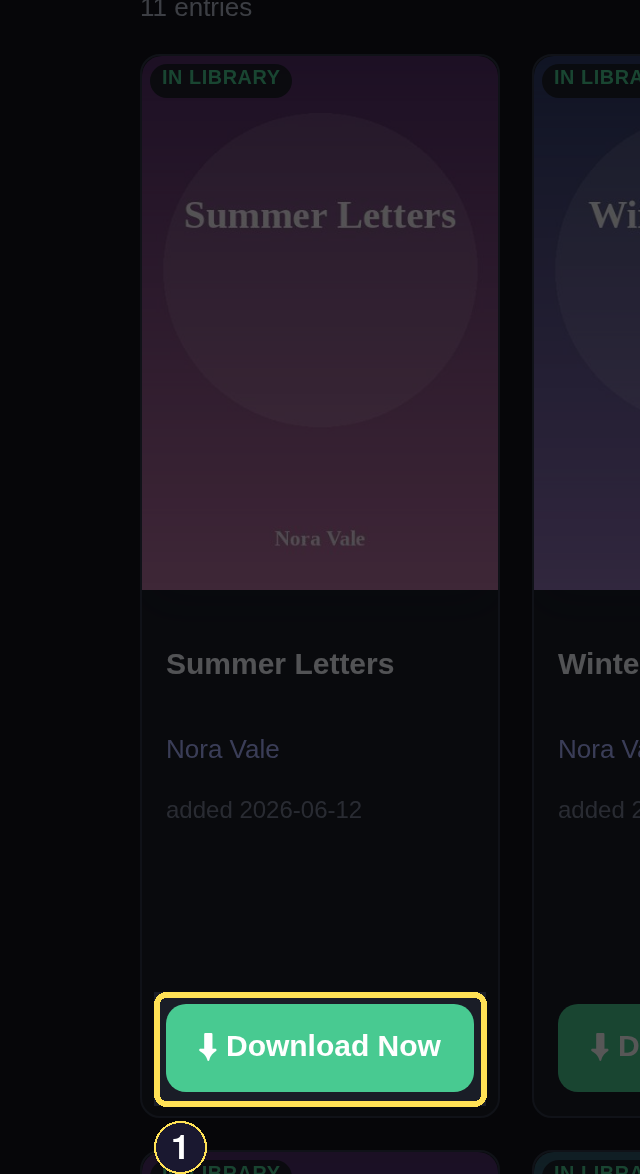
- Checkout saves this Book's file to your device.
- Choosing a filter — a reading-status checkbox, a tag, a trope — narrows what the listing shows. It never changes the shared Library itself, and a chip for each active filter appears above the results with its own × to remove it, plus Clear all.
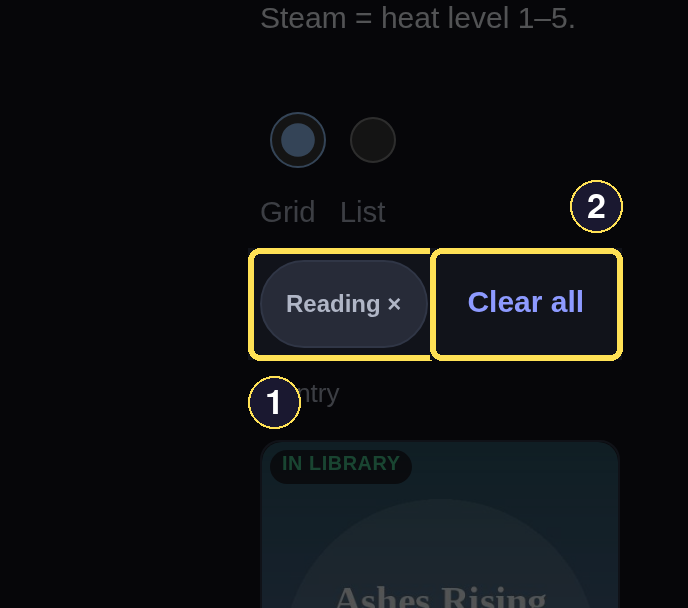
- A reading-status filter narrows the view without touching the shared Library.
- Clear all returns to the full Library.
Phone
- Choose Library in the bottom bar. Type in Filter the Library to narrow the list, and choose Filters to open the same sort, grouping, and view options in a sheet.
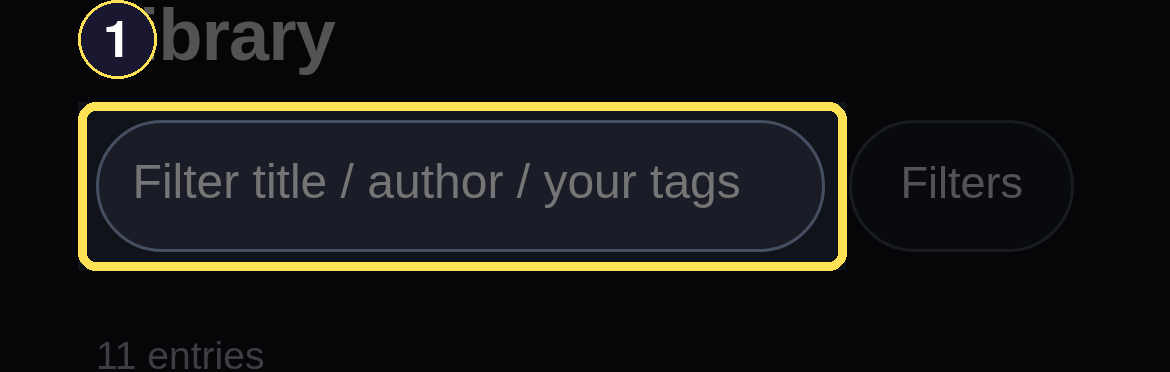
- Type in Filter the Library to narrow by title, Author, Series, or your tags.
- Choose Sort to change the listing order.
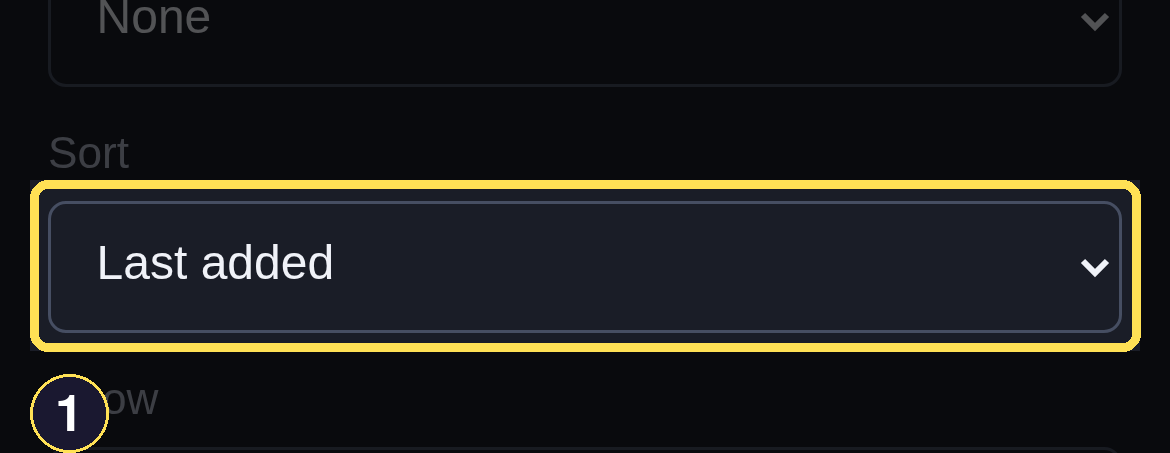
- Sort changes the listing order.
- Choose Grid or List, then open a Book or choose its Checkout control directly from the listing.
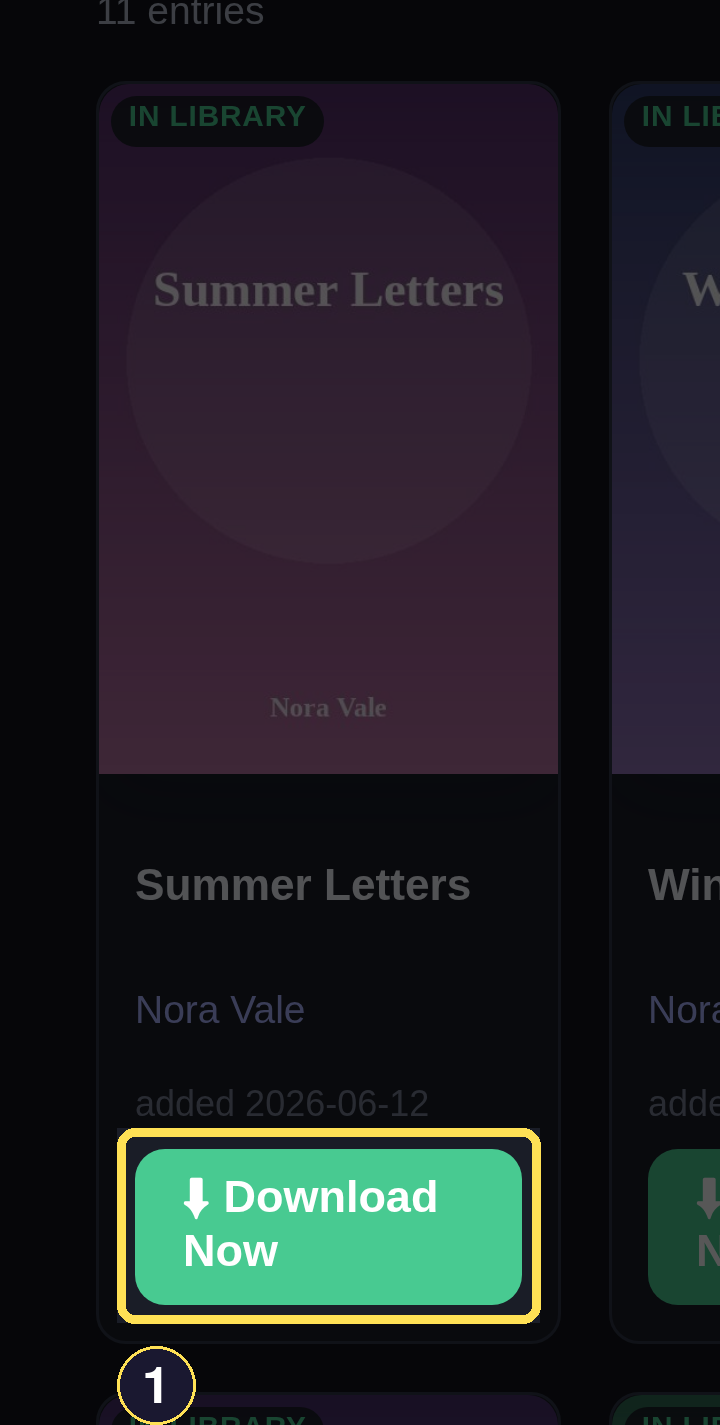
- Checkout saves this Book's file to your device.
The Library's filters only change what you see. The shared collection underneath is exactly the same for every Reader, whatever any one of you has filtered to right now.
Check out a file
Desktop
- Choose Checkout on an Acquired Book to save its file. Your browser handles the save the same way it saves anything else — check its own downloads list if you're not sure where the file landed.
Checking out a file never changes your reading status by itself: it's recorded as its own fact (a Downloaded badge appears on the Book elsewhere in the app), independent of marking a Book Reading or Read. Set that yourself — see Track Reading.
Phone
- Choose Checkout on an Acquired Book. Safari keeps the saved file in its own Downloads list rather than a folder you pick yourself.
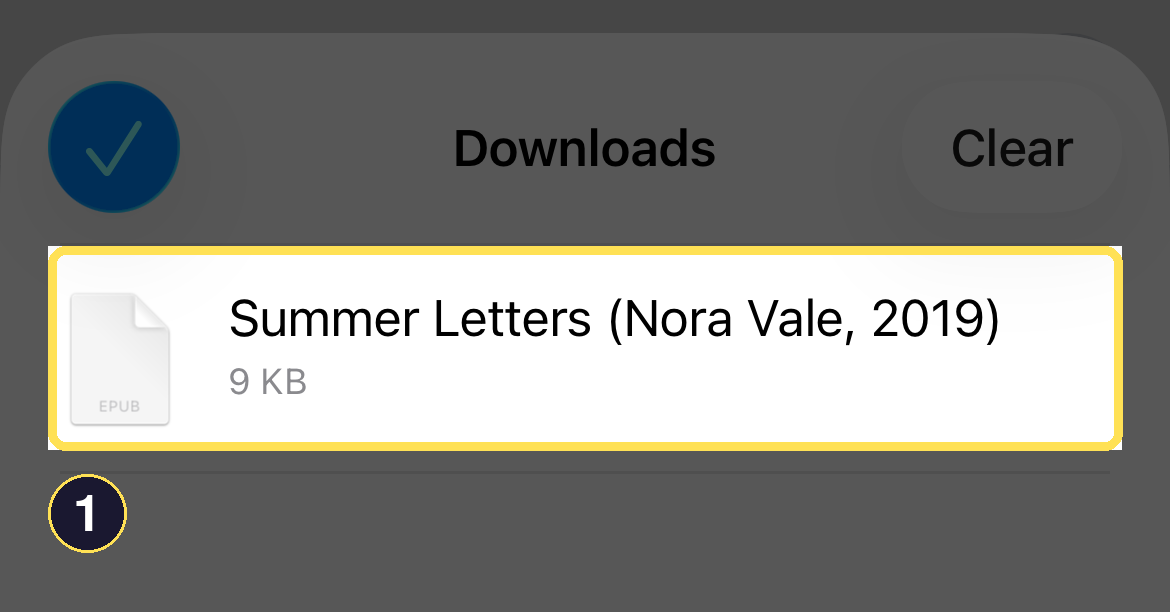
- Safari lists the received EPUB in Downloads once the file finishes.
- Open the Downloads entry to hand the file to the reader app you prefer on your phone.
Checking out a file never changes your reading status by itself: it's recorded as its own fact (a Downloaded badge appears on the Book elsewhere in the app), independent of marking a Book Reading or Read. Set that yourself — see Track Reading.
Use the shared file folders
Desktop
- Choose the round Profile button in the header, then scroll to Where your books land. It says that every requested Book is copied to the iCloud folder shared with your account and stays there after it arrives.
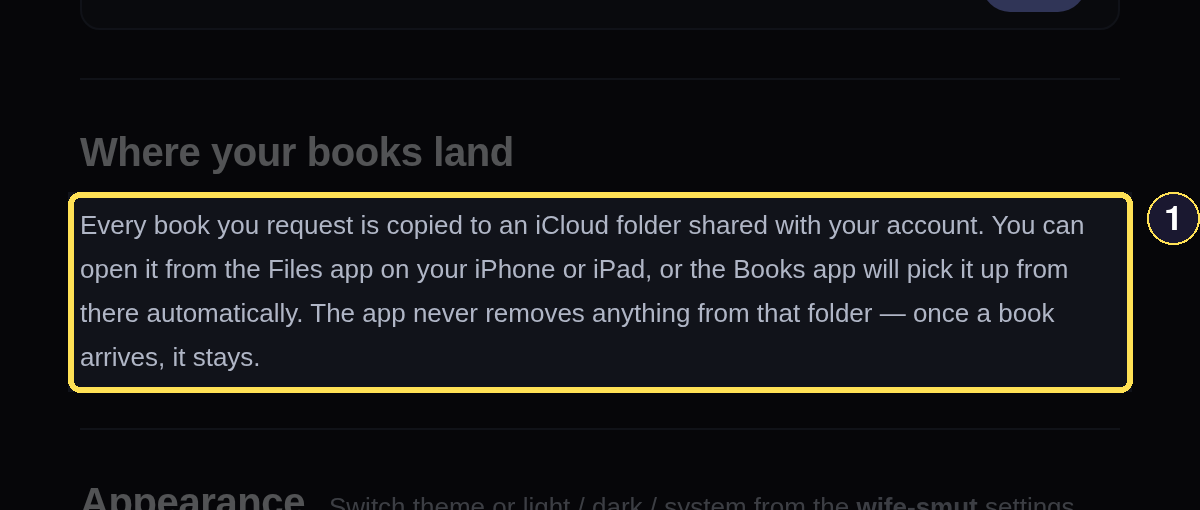
- Where your books land explains that requested Books are copied to your shared iCloud folder.
Phone
- Choose the round Profile button in the header, then scroll to Where your books land. It says that every requested Book is copied to the iCloud folder shared with your account and stays there after it arrives.
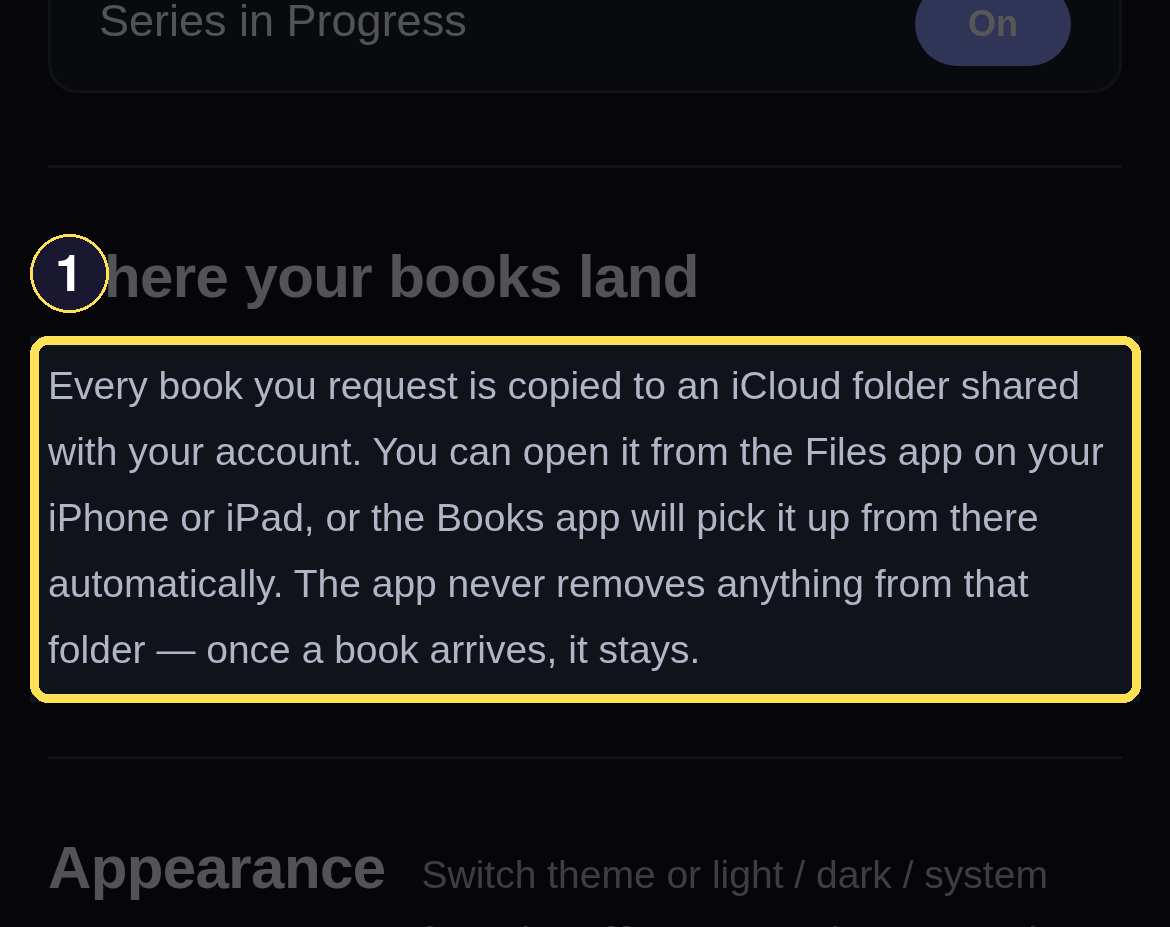
- Where your books land explains that requested Books are copied to your shared iCloud folder.
- Open the iCloud folder from Files to choose a reader app, or let Books pick up the file automatically.
The shared iCloud folder mirrors the Library's Acquired files. The household can also browse the same plain folder view through the Google Drive mirror without opening smutslut; the Library remains where you find a Book by its Catalog details.