Use Your Shelf
Your Shelf is your personal collection hub: an index of manual collections and Saved Searches you build yourself, alongside a full set of automatic views built from your own reading activity. It never changes the shared Library — only what you see and how you group it.
Open a Shelf
- Choose Shelf in the header (desktop) or the bottom tab bar (phone) to open Shelf Home. It lists every Shelf you can open, in three groups: Your Shelves (your own manual collections and Saved Searches), Automatic (one Shelf per system-derived view, always listed, in the same order every time), and Shared (Admin-published Shelves every signed-in reader can view).
- Choose a Shelf's name to open it. Each Shelf is its own page, with its own paginated membership — not a section of one long scrolling dashboard.
At the top of Shelf Home, jump chips let you move straight to an Automatic Shelf farther down the page.
Desktop
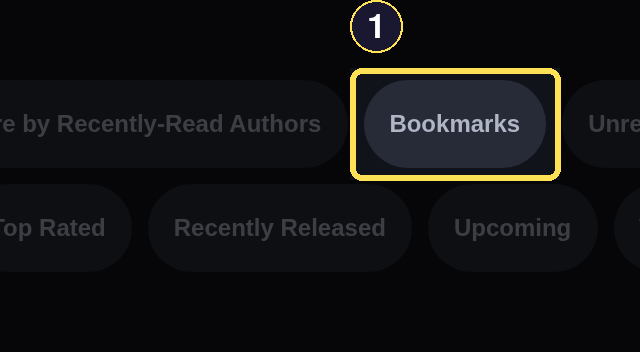
- Each chip jumps straight to that section further down the page — this one opens Bookmarks.
Phone
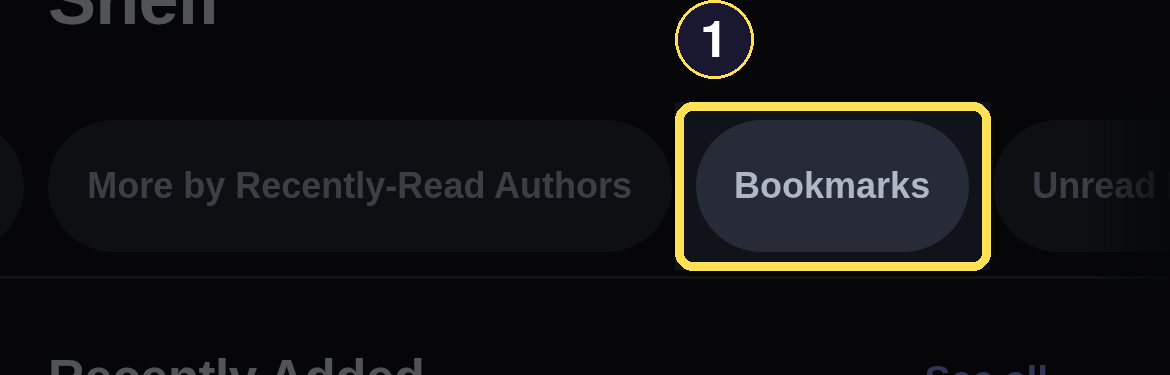
- Each chip jumps straight to that section further down the page — this one opens Bookmarks.
A manual Shelf's row on Shelf Home shows how many books it holds; a Saved Search's row reads Saved Search — live instead, because it has no fixed membership to count. A Shared Shelf still in Draft carries a Draft badge next to its count, visible only when an admin is signed in.
What each Shelf shows
Recently Added is always first in the Automatic group. Every other Automatic Shelf follows in the same fixed order:
| Shelf | What it shows |
|---|---|
| Recently Added | Every Book currently in the Library, newest addition first. |
| Downloaded | Books whose most recent Checkout is more recent than any reading verdict you've logged for them. |
| Currently Reading | Books with an open reading cycle right now. |
| Next in Series | The next unread Book in a Series where you've finished at least one released Book. |
| Recently Requested | Your most recently requested Books. |
| More by Recently-Read Authors | Unowned Books by an Author whose Book you've finished. |
| Recently Read — Not Rated | Finished Books that are still waiting on a star. |
| Bookmarks | Books, Series, and Authors you've bookmarked. |
| Unread Releases by Watched | Released, unread Books by an Author or Series you Watch. |
| Series in Progress | A Series with at least one finished released Book and at least one you haven't finished; a current Did Not Finish anywhere in the Series removes it from this list only. |
| New in Your Series | Recently released Books in a Series you've already started. |
| More Series by Authors You Love | Other Series by an Author whose Books you finish. |
| Full series available | A Series you own in full that you haven't started yet. |
| Read | Every Book you've finished, most recently finished first. |
| Rated | Every Book you've starred, most recently rated first. |
| Unrated | A started or finished Book with no star yet. |
| DNF | Books you've marked Did not finish. |
| Top Rated | The same starred Books as Rated, ordered best star first instead. |
| Recently Released | New catalog releases from the last 90 days, limited to Authors the household has requested before and not given up on. |
| Upcoming | Future-dated catalog Books by that same set of Authors, with no cutoff on how far out. |
| What to Read Next | Your personal recommendation queue — see Discover. |
| Recently Catalogued | Every acquisition Request anyone in the household has made, newest first — pending, ready, cancelled, or failed alike; it shows each request's status only, with no acquire control of its own. |
Recently Added stays first
Recently Added is the one Automatic Shelf you cannot hide. Its See all link opens its own full page when the carousel preview is not enough.
Desktop
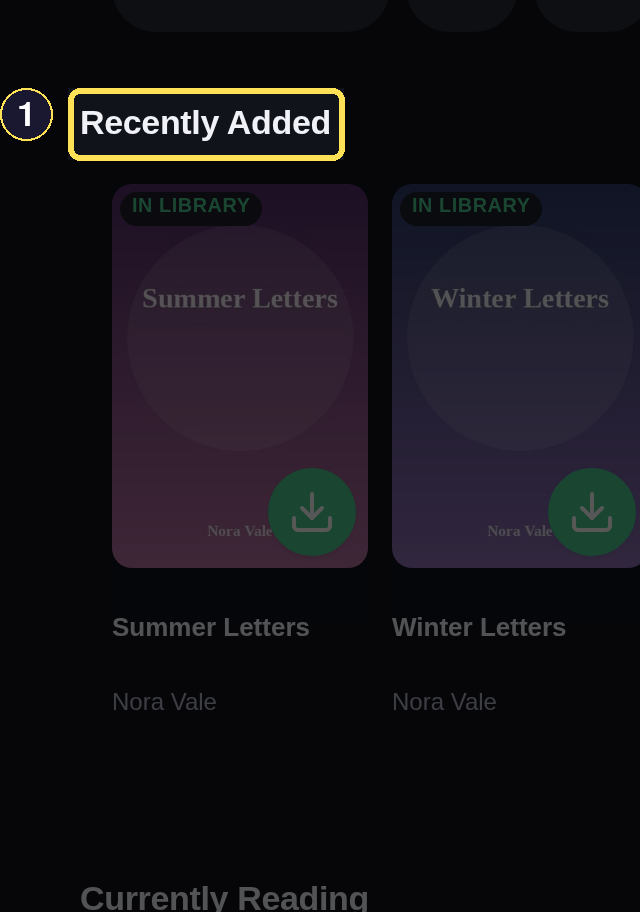
- Recently Added has no Hide control — it is pinned first and always shown.
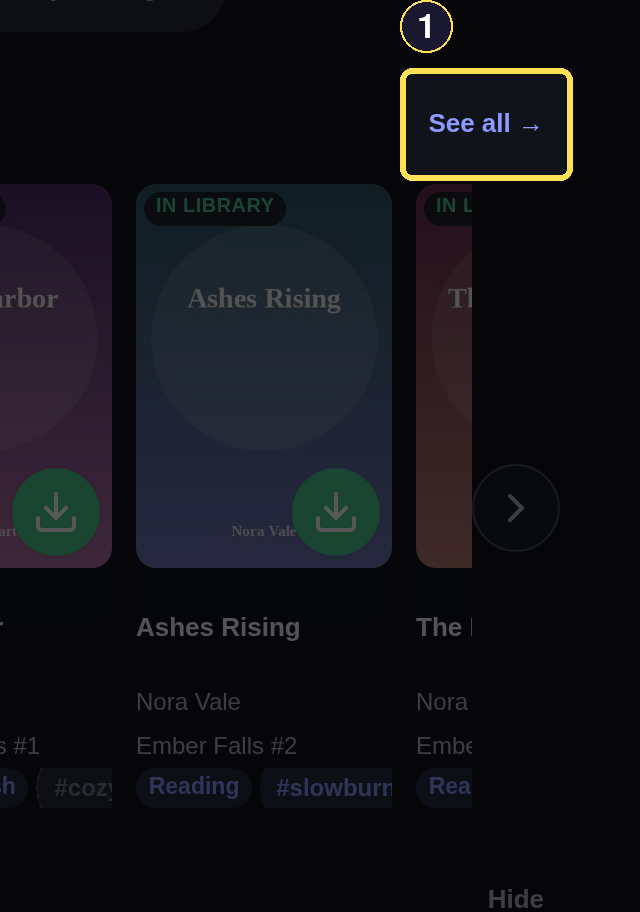
- See all opens this section's own full page for more than the carousel preview shows.
Phone
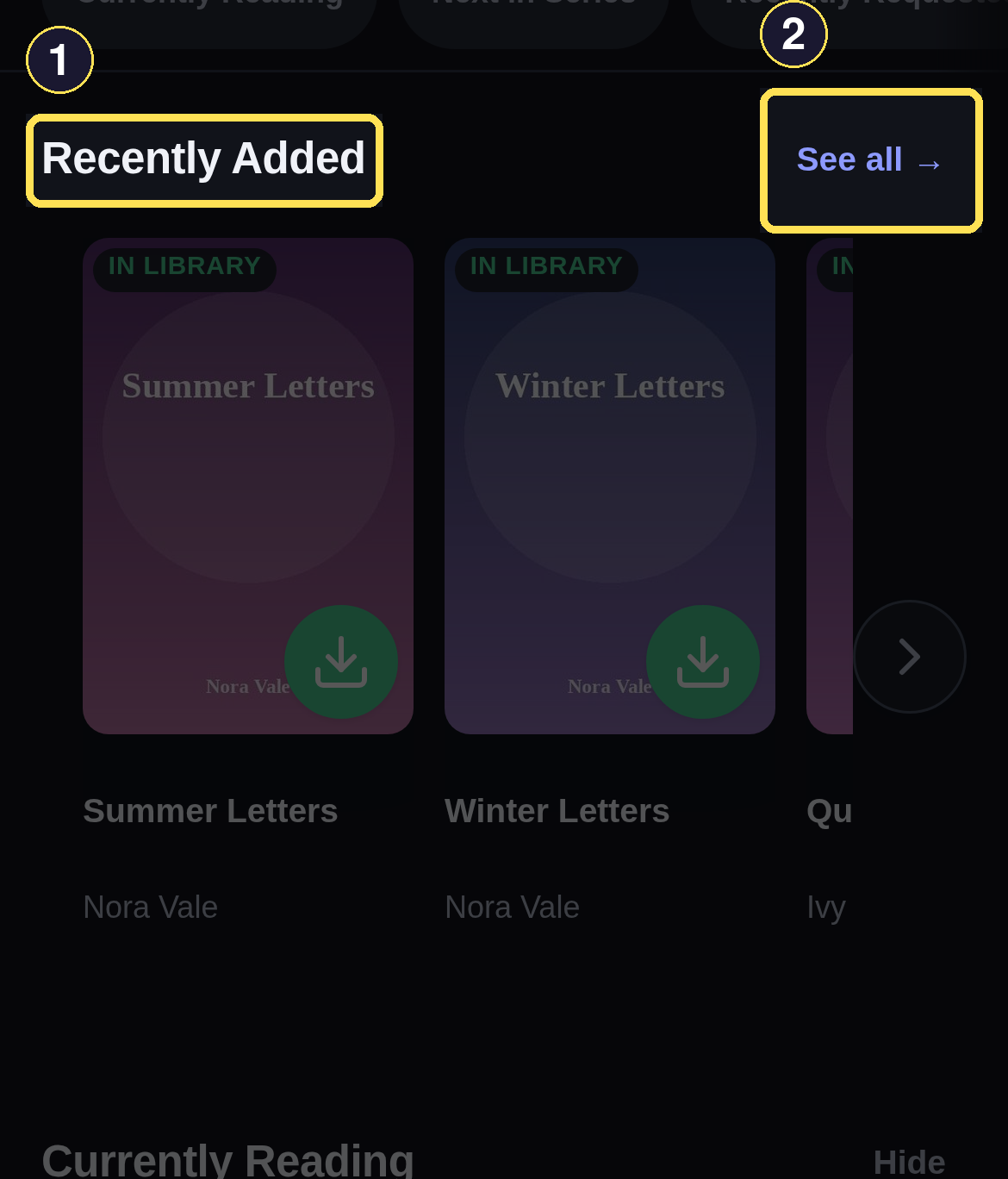
- Recently Added has no Hide control — it is pinned first and always shown.
- See all opens this section's own full page for more than the carousel preview shows.
A manual Shelf shows exactly the Books you've added, in the order you put them. A Saved Search shows whatever currently matches its saved text against the Catalog and Library — open it again later and its membership may have changed on its own.
Hide an Automatic Shelf
Apart from Recently Added, an Automatic Shelf has a Hide control. The Hidden sections panel lets you bring it back.
Desktop
- Hide removes just this section from your Shelf until you bring it back.
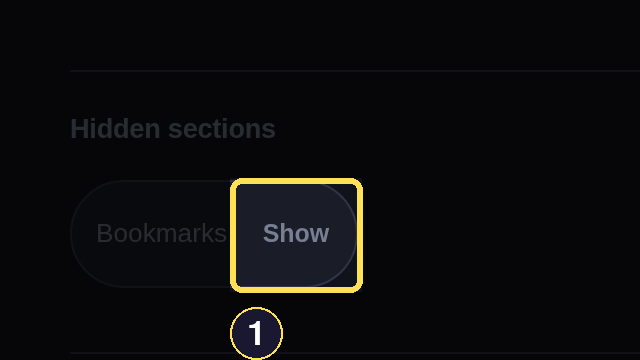
- Show restores a hidden section to its original position — never to the end.
Phone
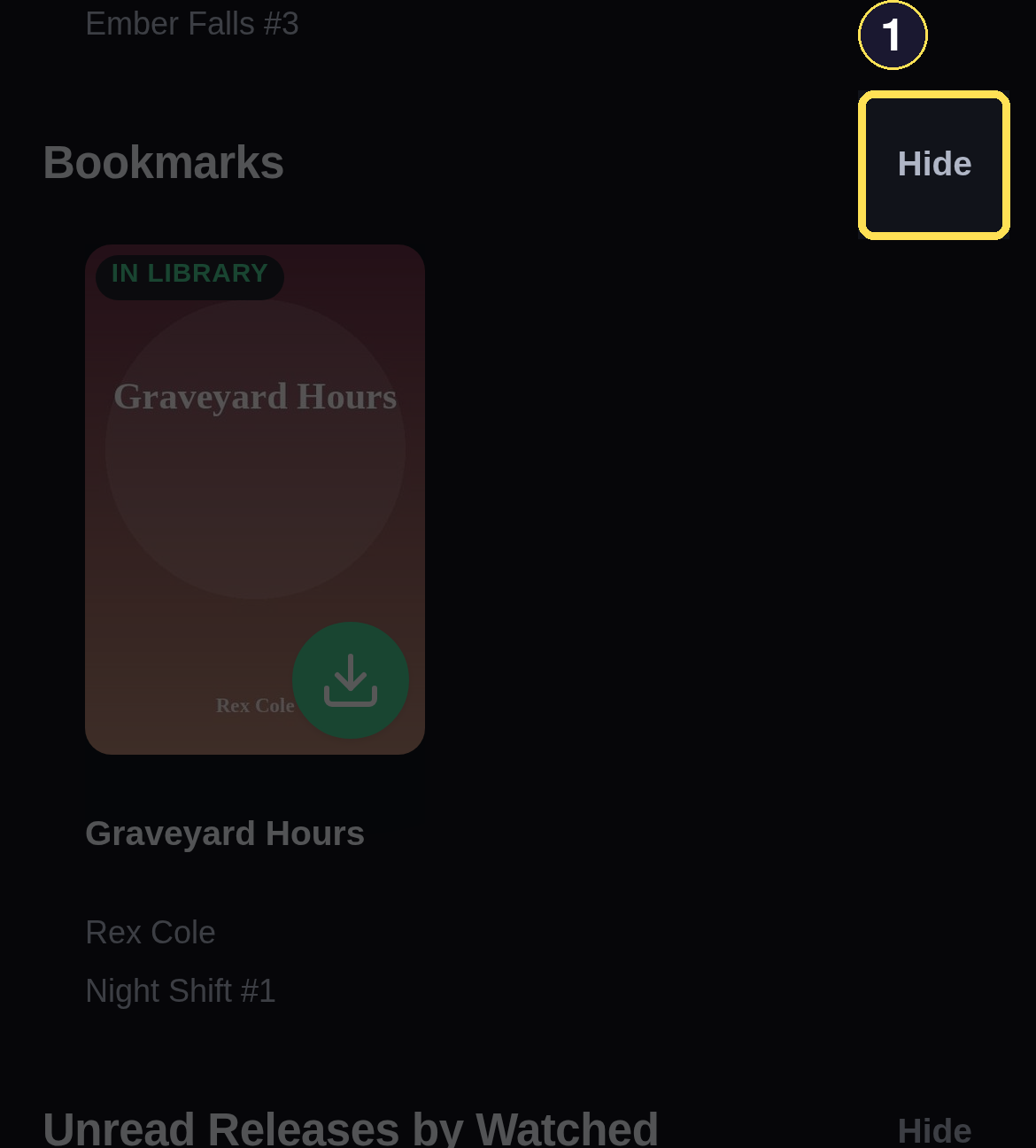
- Hide removes just this section from your Shelf until you bring it back.
- Show restores a hidden section to its original position — never to the end.
Create, edit, or delete a Shelf
Desktop
- On Shelf Home, name your new Shelf, choose Manual or Saved Search, optionally enter Saved Search text, then choose Create Shelf. A manual Shelf starts empty; a Saved Search starts live from whatever text you gave it.
- Open a Shelf you own to Rename it — or, on a Saved Search, change its search text — then choose Save.
- On a manual Shelf you own, add a Book with Add a Book by id, using the number shown in that Book's own page address. Remove or reorder a Book from the same page.
- Choose Delete Shelf to expand a confirmation, then Delete forever. This removes the Shelf itself; it never removes the Books on it from your Library.
Phone
- On Shelf Home, name your new Shelf, choose Manual or Saved Search, optionally enter Saved Search text, then choose Create Shelf. A manual Shelf starts empty; a Saved Search starts live from whatever text you gave it.
- Open a Shelf you own to Rename it — or, on a Saved Search, change its search text — then choose Save.
- On a manual Shelf you own, add a Book with Add a Book by id, using the number shown in that Book's own page address. Remove or reorder a Book from the same page.
- Choose Delete Shelf to expand a confirmation, then Delete forever. This removes the Shelf itself; it never removes the Books on it from your Library.
An Admin creating either kind can also check Shared. A Shared Shelf starts as a private Draft; only an Admin can choose Publish to make it visible to every signed-in Reader, or Retire (unpublish) to pull a published one back to Draft. Retiring never deletes it — only its publish status changes.
How a Shelf follows your activity
Most Automatic Shelves are a live read of your own activity, not something you maintain by hand:
Desktop
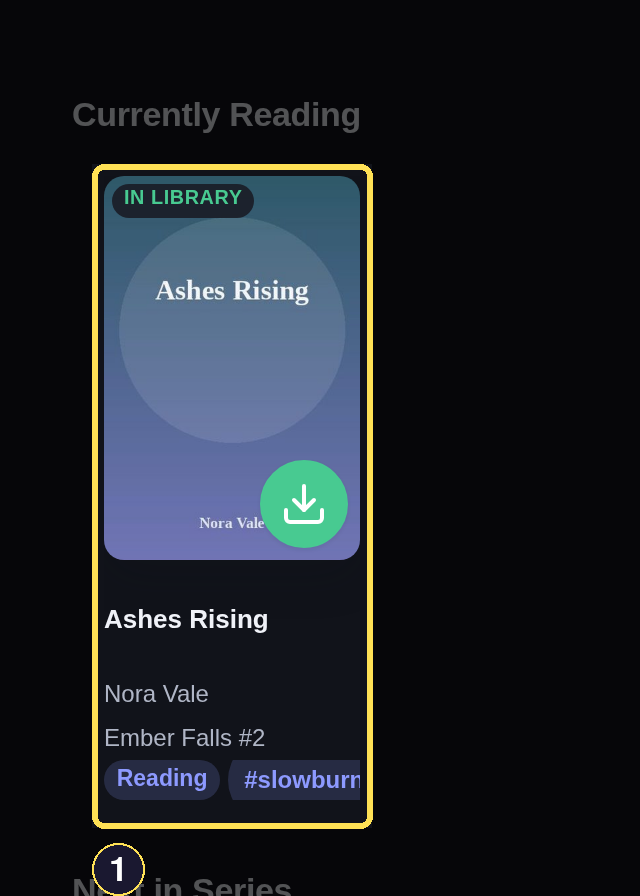
- Ashes Rising appears here only because its reading cycle is set to Reading.
Phone
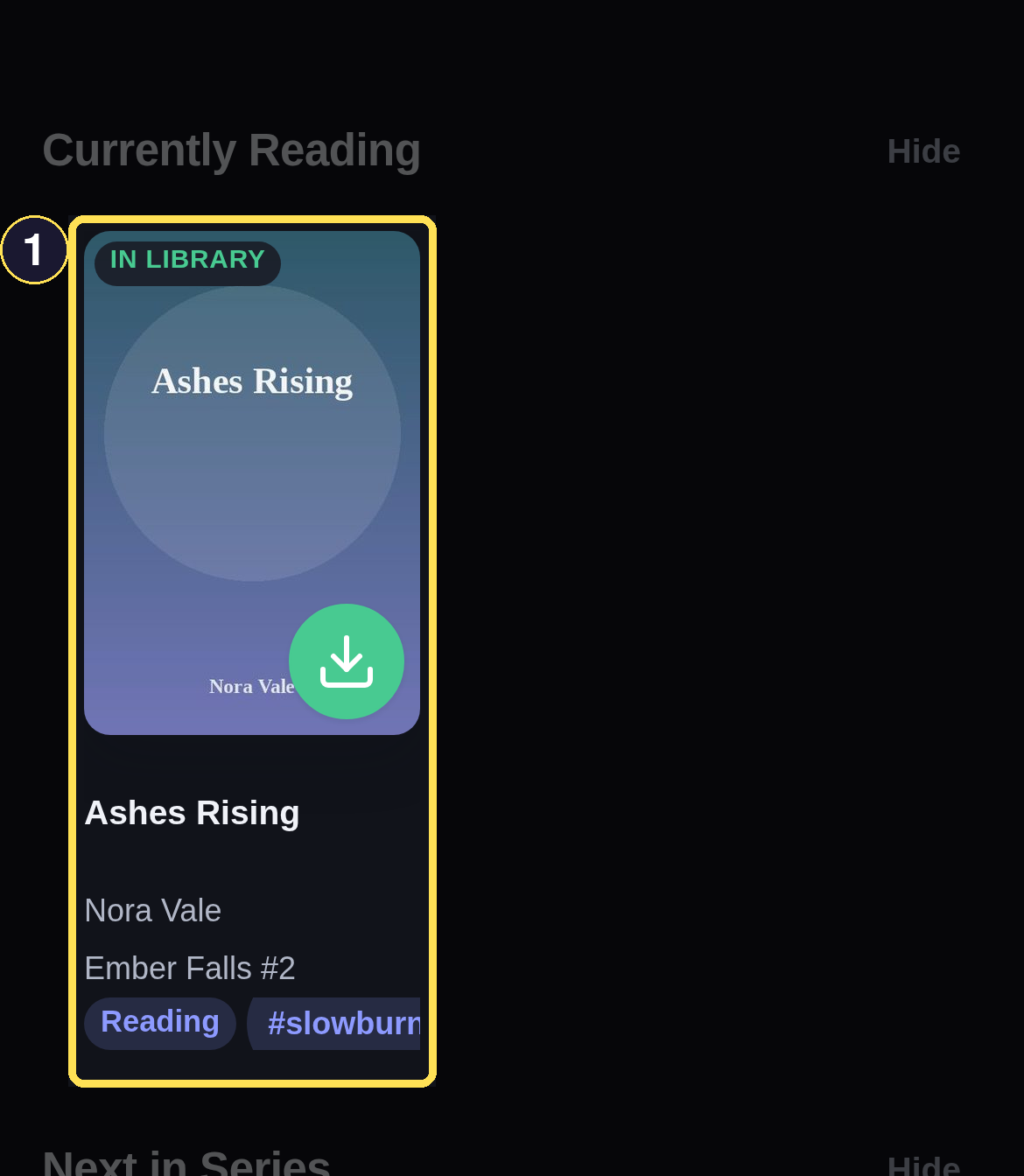
- Ashes Rising appears here only because its reading cycle is set to Reading.
- Set a Book to Reading (see Track Reading) and it appears on Currently Reading until you close that cycle.
- Choose Finished or Did not finish and the Book moves onto Read or DNF, and — once you star it — Rated and Top Rated as well.
- Bookmark or Watch a Book, Series, or Author to add it to Bookmarks or Unread Releases by Watched.