Track Reading
Reading is a set of independent facts about one Book, not a single exclusive state — a Book can be Read and Currently Reading at the same time during a reread, and a Book you checked out from the File Share without ever opening the app still keeps its own Checkout date. Every fact here is private to you: it never changes the shared file in the Library, and no other Reader ever sees your status, stars, comment, or tags.
Set your current reading cycle
- Select a Book you own — for example Ashes Rising — from the Library, Shelf, or Search results to open its Book page.
- Under Your reading, choose Reading, Read, or Did not finish. Whichever one is already current is shown disabled; the other two stay clickable, and choosing one takes effect immediately — there is no separate save step. Choosing Read or Did not finish here closes the cycle exactly the way Done reading below does.
- While a cycle is open, choose Cancel current cycle to clear it without recording a verdict either way.
Desktop
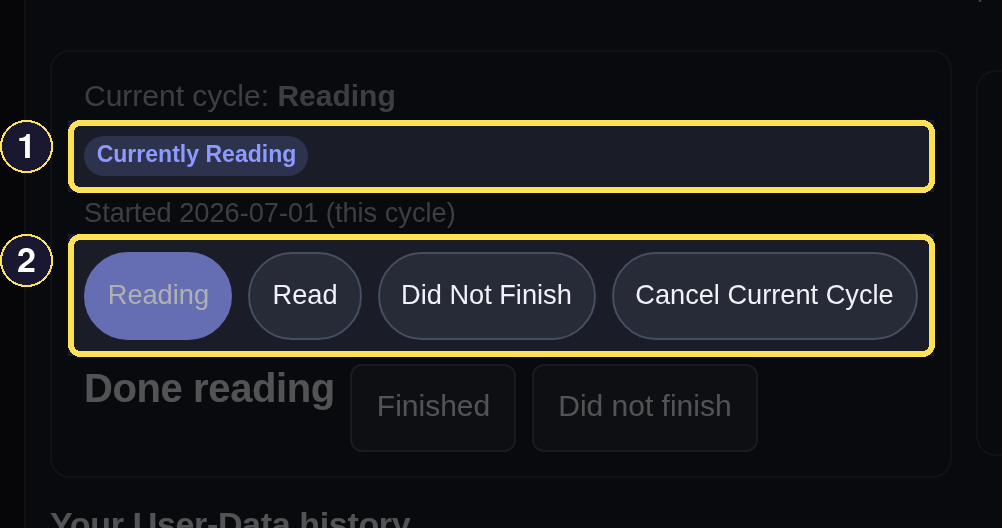
- Currently Reading is a badge, not a slot — it appears only while this cycle is open.
- Choose Reading, Read, or Did not finish to change the current cycle; Cancel current cycle clears it without a verdict.
Phone
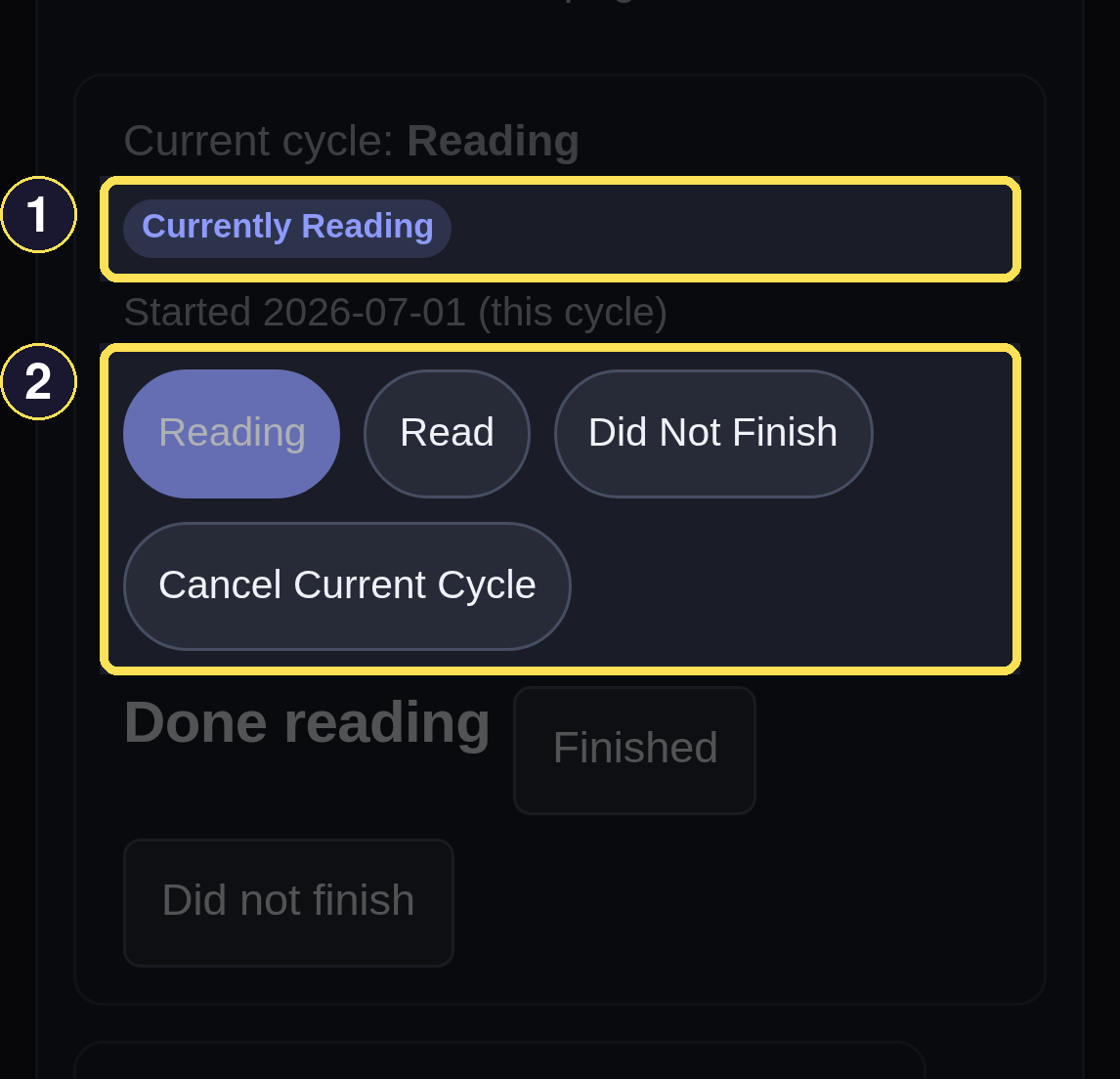
- Currently Reading is a badge, not a slot — it appears only while this cycle is open.
- Choose Reading, Read, or Did not finish to change the current cycle; Cancel current cycle clears it without a verdict.
A Book starts at Not started — there is no row to clear, no badge, nothing to undo.
Finish or correct a reading cycle
- Under Done reading, choose Finished or Did not finish to close an open cycle and record the outcome. This section stays available even after a Book already has an outcome, so it also works for logging a reread.
- Did not finish clears any star rating on the spot — a Book cannot be both rated and marked DNF at the same time.
- If you already recorded the wrong verdict, use Correct Read or Correct DNF — whichever the Book currently carries — to add a correction. This appends to your history instead of deleting the mistaken entry.
Desktop
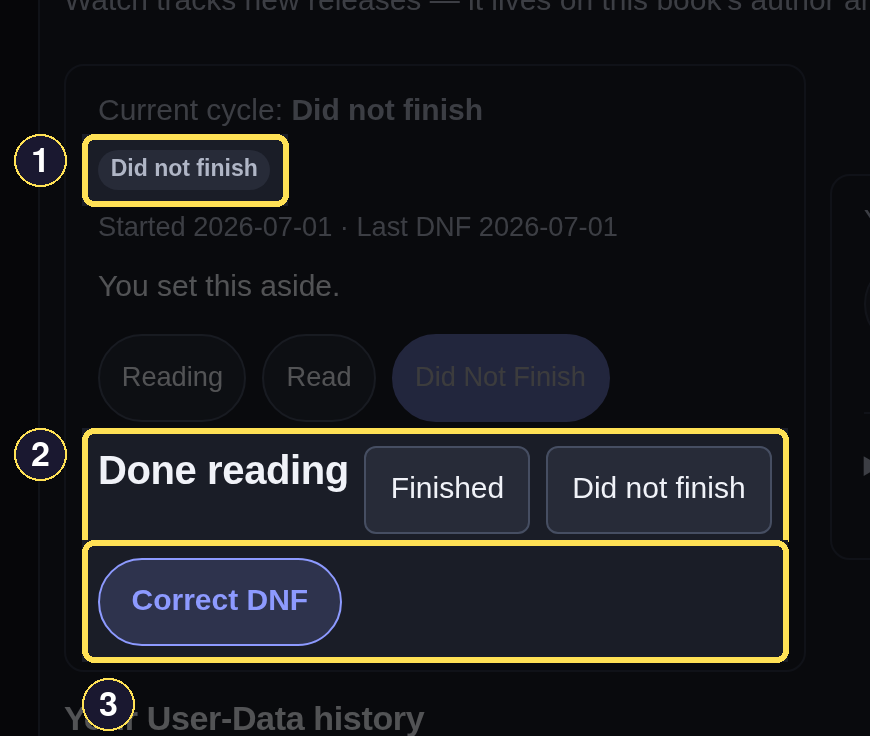
- Did not finish replaces the star rating — a DNF Book can't carry one.
- Done reading stays available even after a verdict, for logging a fresh read of the same Book.
- Correct DNF fixes a mistaken verdict without erasing the original history entry.
Phone
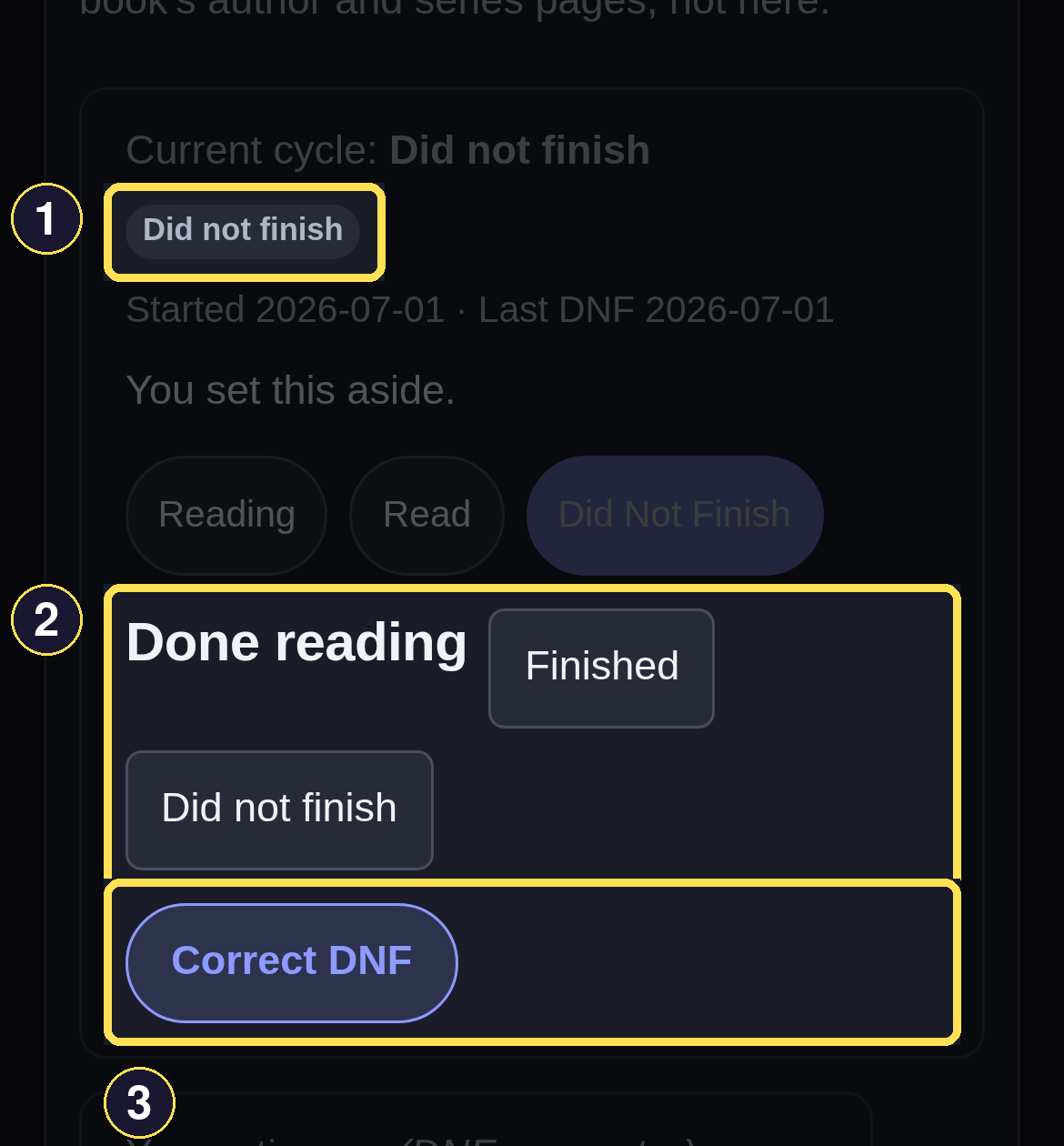
- Did not finish replaces the star rating — a DNF Book can't carry one.
- Done reading stays available even after a verdict, for logging a fresh read of the same Book.
- Correct DNF fixes a mistaken verdict without erasing the original history entry.
Dates are independent facts too, not one active window: the current cycle's own start date is separate from when a past cycle finished or was marked DNF.
Desktop
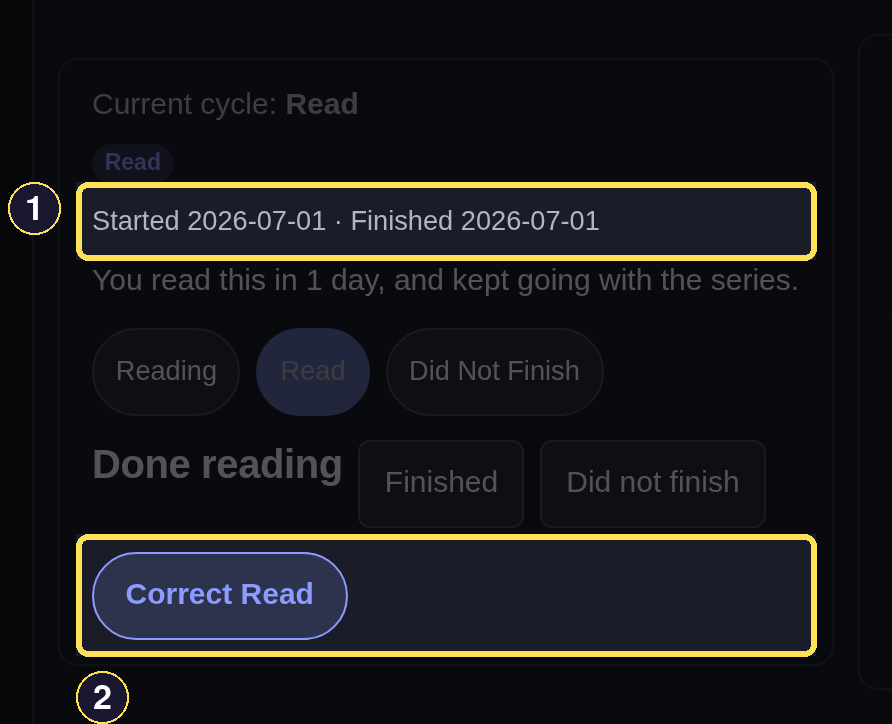
- Independent dates for this cycle — when it started and, separately, when it closed.
- Correct Read appends a correction instead of deleting what you already recorded.
Phone
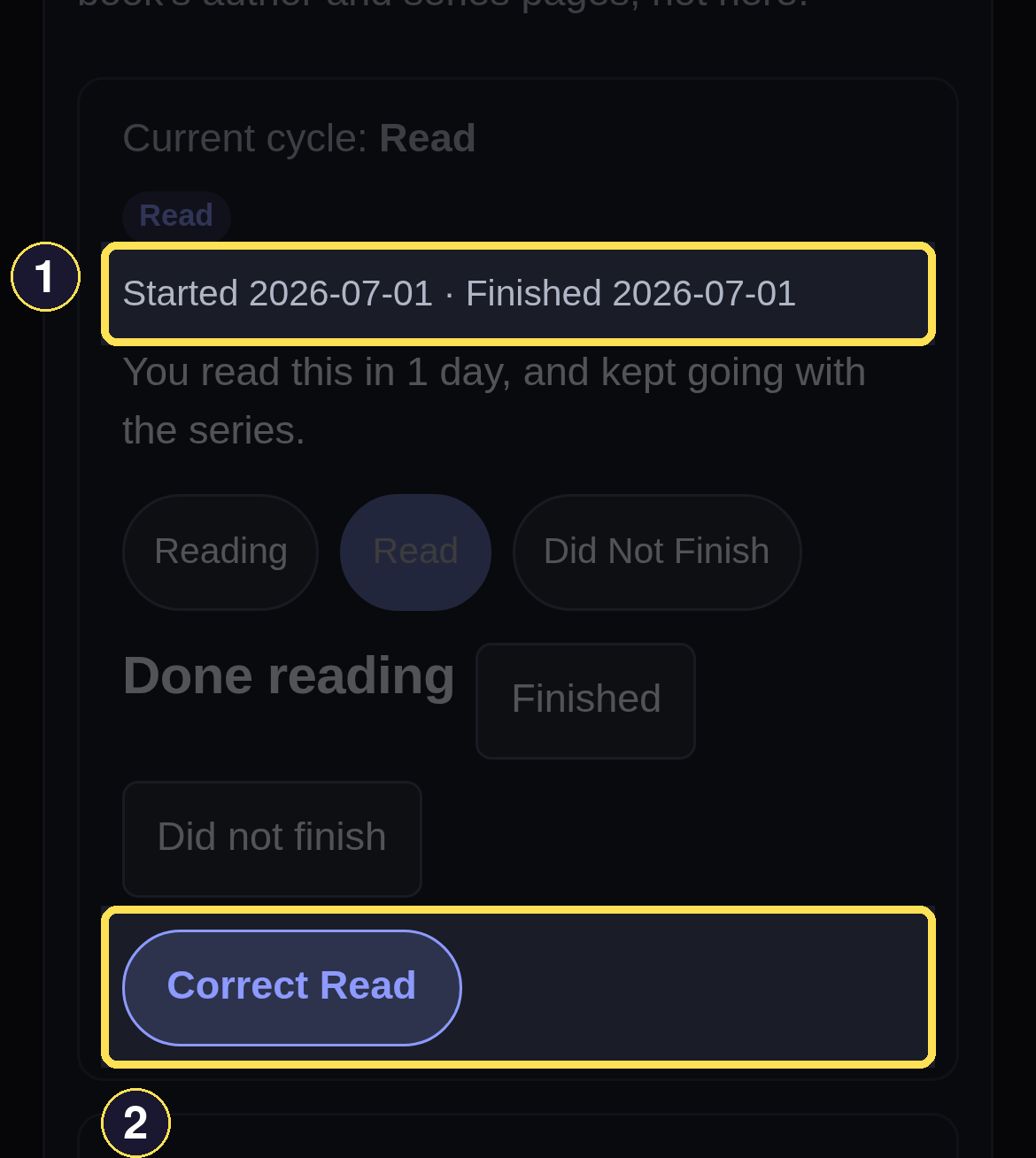
- Independent dates for this cycle — when it started and, separately, when it closed.
- Correct Read appends a correction instead of deleting what you already recorded.
Rate and comment on a book
- Choose one of the five stars under Your rating to set it; choosing the same star again does not remove it — there is no separate clear control. The stars are disabled while the Book is marked Did not finish.
- Expand Comment and write a note, then choose Save comment. It stays collapsed until you have already saved something, so a Book with no comment does not clutter the page.
Desktop
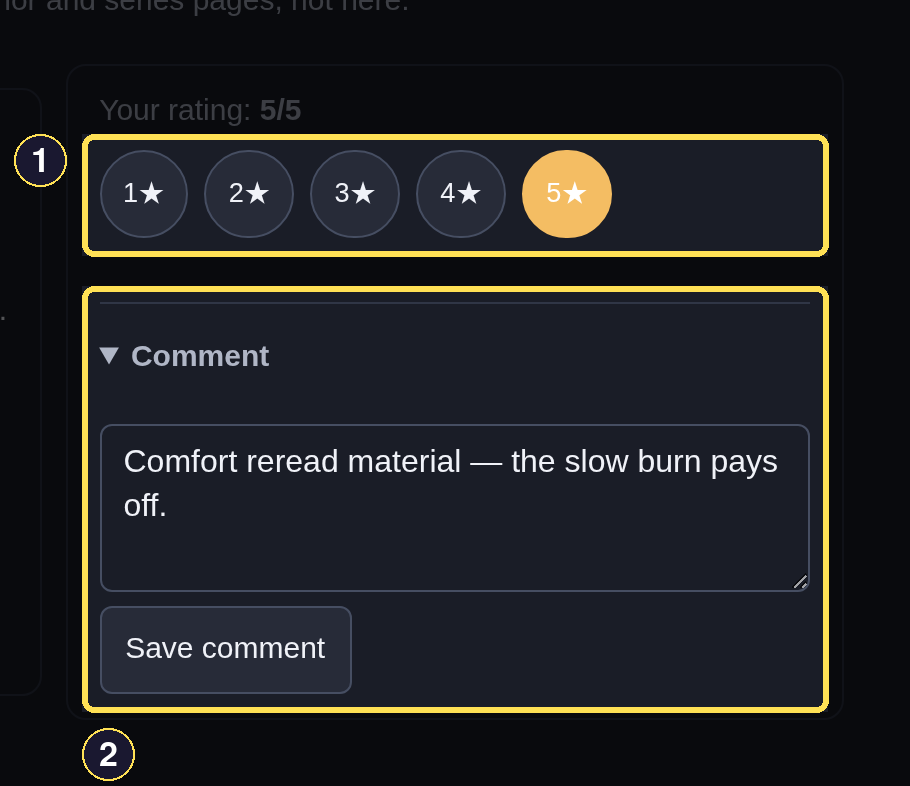
- Five tappable stars — this Book is rated 5/5.
- Comment is already open because one is saved; it stays collapsed until then.
Phone
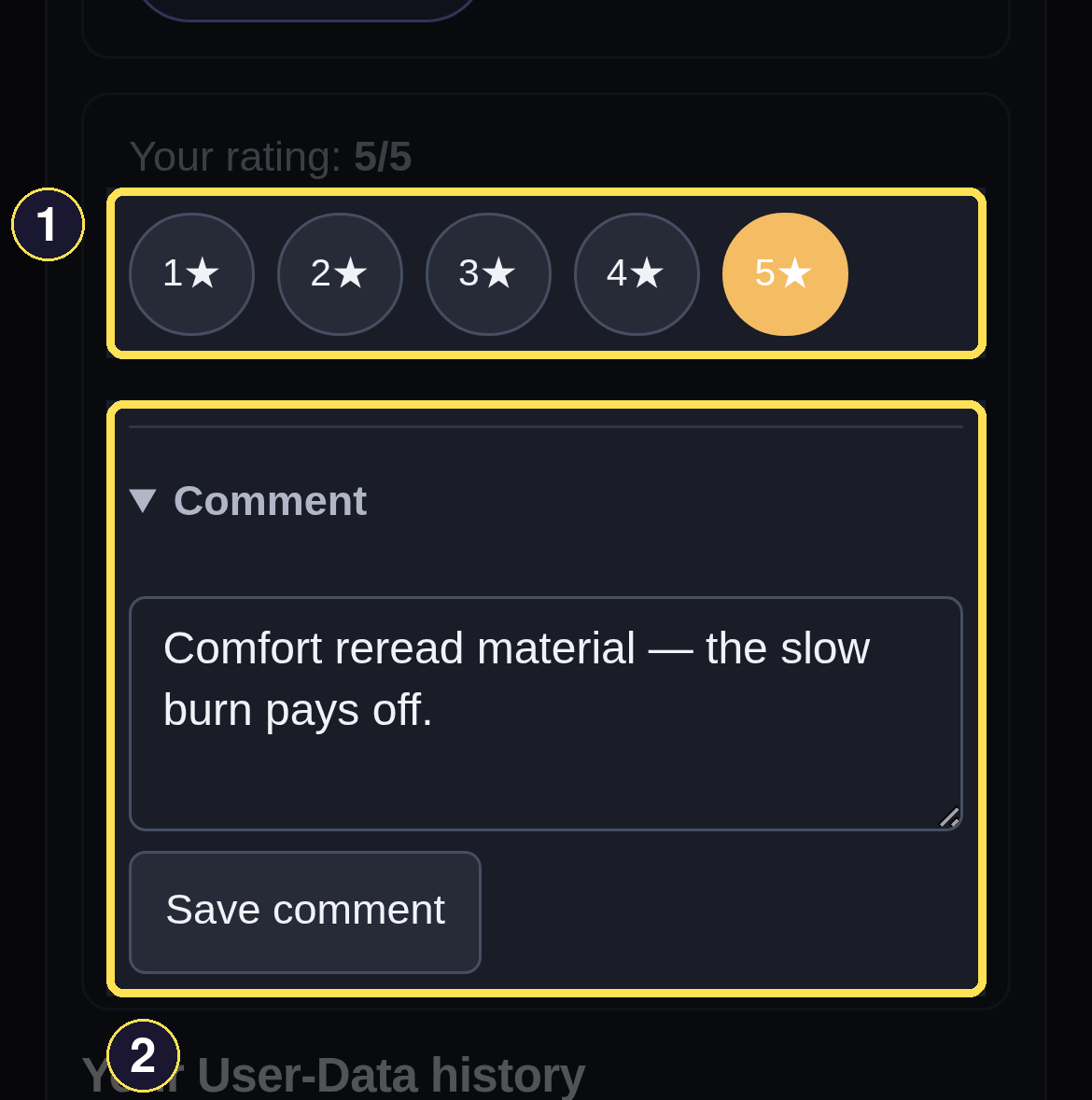
- Five tappable stars — this Book is rated 5/5.
- Comment is already open because one is saved; it stays collapsed until then.
Tag a book for yourself
- Type a word into the add a tag field under the Book's tags and choose Add.
- Your own tags carry a × button to remove them. A tag inherited from the Book's Series instead carries a ghost badge with no remove control — it can only be edited on the Series page, because removing it there is what actually changes it.
- A tag doubles as a shortcut: choosing the tag itself opens the Library filtered to everything carrying it, own and inherited alike.
Desktop
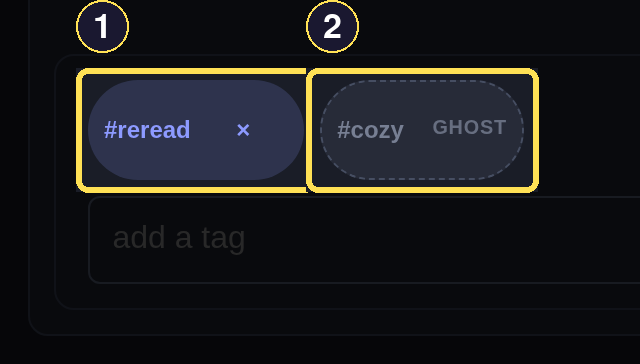
- Your own tags carry a × button to remove them.
- A tag inherited from the Book's Series instead carries a ghost badge with no remove control.
Phone
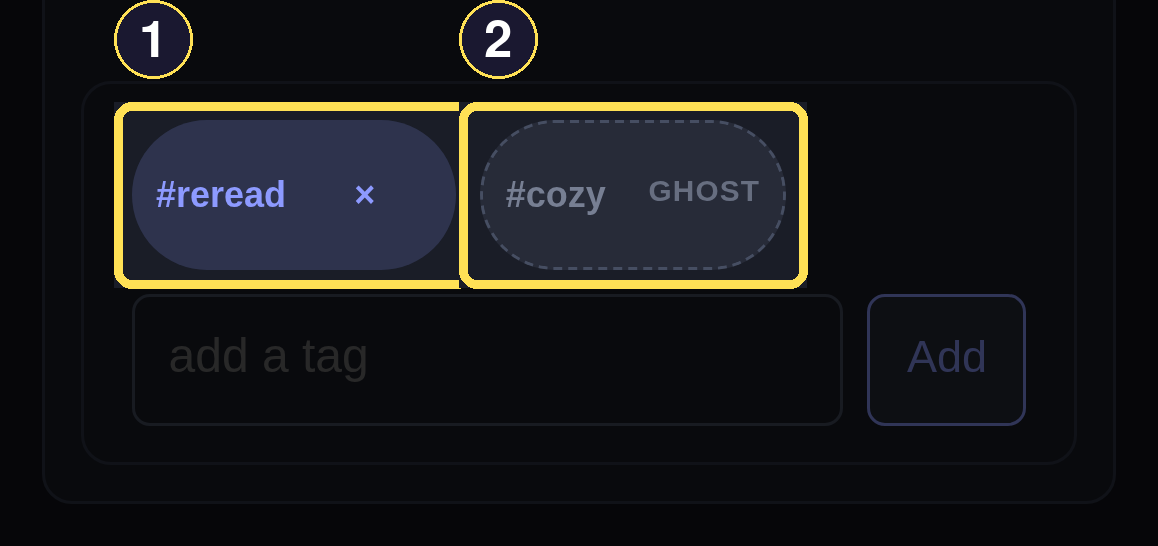
- Your own tags carry a × button to remove them.
- A tag inherited from the Book's Series instead carries a ghost badge with no remove control.
See how a Series status is derived
A Series has no status control of its own — it is computed from your independent reading facts on its member Books, every time it is shown.
- Open a Series page. Its status badge reads Nothing finished, In progress, All finished, or Caught up — never something you set directly.
- Nothing finished means no Book in the Series has been started, finished, or marked Did not finish; In progress means at least one Book has an open reading cycle right now, or the Series has a mix of finished and untouched Books.
- All finished means every Book in the Series is done (read or DNF) with nothing left to release. Caught up is different: every released Book is done, but the Series itself has at least one more Book still unreleased — you're waiting on it, not finished with the story.
- Marking any Book in the Series Did not finish removes the Series from your Series in Progress Shelf, though the Series page itself still shows normally.
Desktop
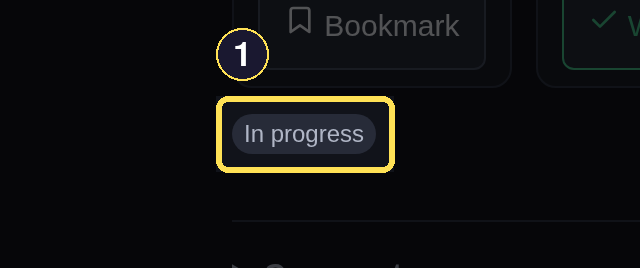
- Computed from your reading facts on this Series' Books — this reads In progress because The First Spark is finished but Ashes Rising is not yet.
Phone
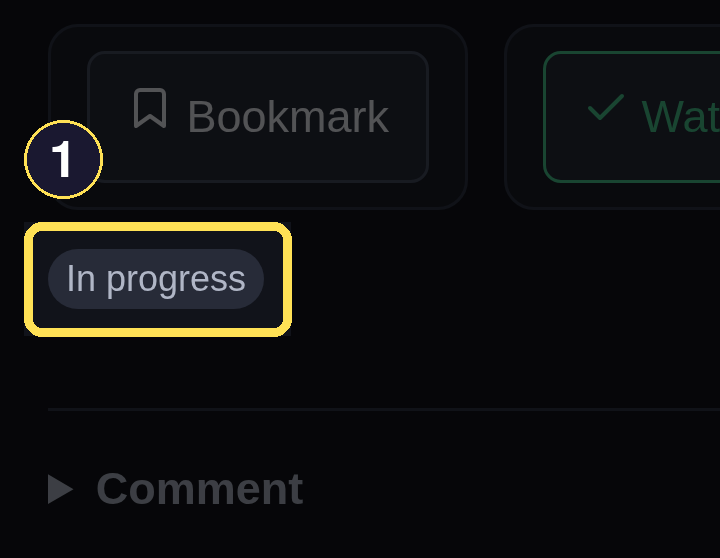
- Computed from your reading facts on this Series' Books — this reads In progress because The First Spark is finished but Ashes Rising is not yet.