Find a Book
The Catalog already holds every romance.io Book plus your own local-only Books — it's the complete collection, not a partial one. Search it from the header; the romance.io tab beside it opens Explore, the same Catalog with extra romance.io-only filters like trope, steam, and community rating.
Search the Catalog
Desktop
- Choose Search in the header, then type into Search the Catalog. Results narrow about 300ms after you stop typing; press Search to reload the page with the same query.

- Search reloads the page with your query.
- Use the Catalog and romance.io links above the results to choose which filters you want. Catalog is the plain search box; romance.io opens Explore, covered below.
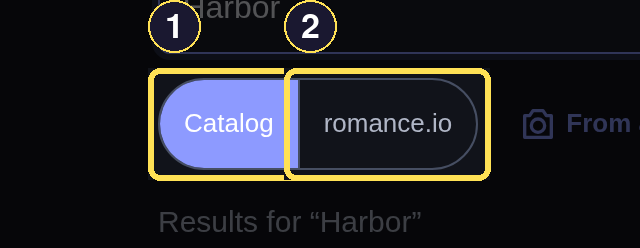
- Catalog is the plain search box.
- romance.io opens Explore — the same Catalog, with trope, steam, and rating filters added.
- Under In your catalog, Authors and series link straight to pages smutslut already has. Books lists matching titles with their acquire control already in place, so you can request or check out right from the results.
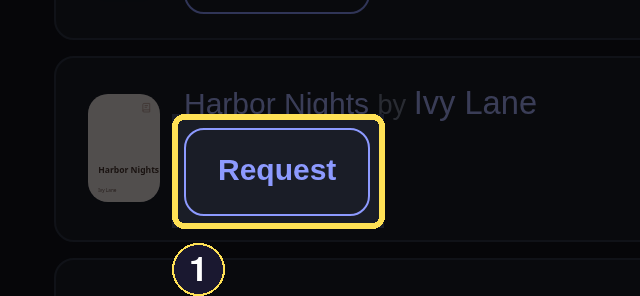
- Request appears on a Catalog Book you don't have yet.
Phone
- Choose the Search tab in the bottom bar, then type into Search the Catalog. Results narrow about 300ms after you stop typing; choose Search to reload the page with the same query.
- Search reloads the page with your query.
- Use the Catalog and romance.io links above the results to choose which filters you want. Catalog is the plain search box; romance.io opens Explore, covered below.
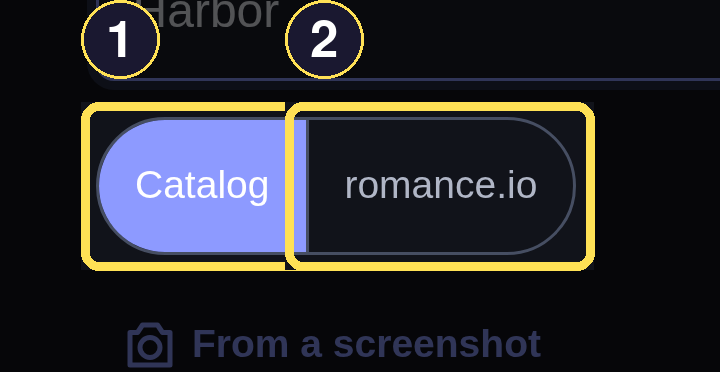
- Catalog is the plain search box.
- romance.io opens Explore — the same Catalog, with trope, steam, and rating filters added.
- Under In your catalog, Authors and series link straight to pages smutslut already has. Books lists matching titles with their acquire control already in place.
- Request appears on a Catalog Book you don't have yet.
After you type at least three letters, Search also checks BookNotification live — no extra tap — for the rare title neither the Catalog nor your Library already covers, and lists whatever it finds beyond your Catalog, or says plainly that nothing did: Nothing on BookNotification matches "your search". for books, or No authors on BookNotification match "your search". for authors. With fewer than three letters, it says Type at least 3 letters to search BookNotification. If BookNotification itself doesn't answer in time, Search names exactly which half is missing rather than guessing: BookNotification didn't answer for authors — the author half of these results is missing. Try again in a minute.
Follow a Did You Mean suggestion
Desktop
- When Search finds a close spelling, choose a chip under Did you mean to search that exact spelling instead of retyping it.
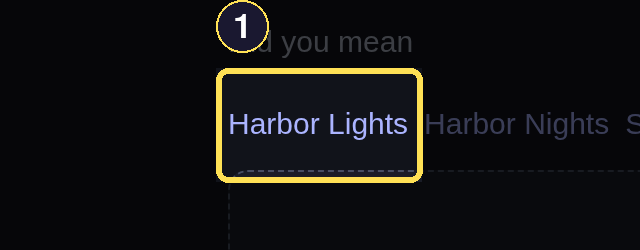
- Choose a Did you mean chip to search its exact spelling.
Phone
- When Search finds a close spelling, choose a chip under Did you mean to search that exact spelling instead of retyping it.
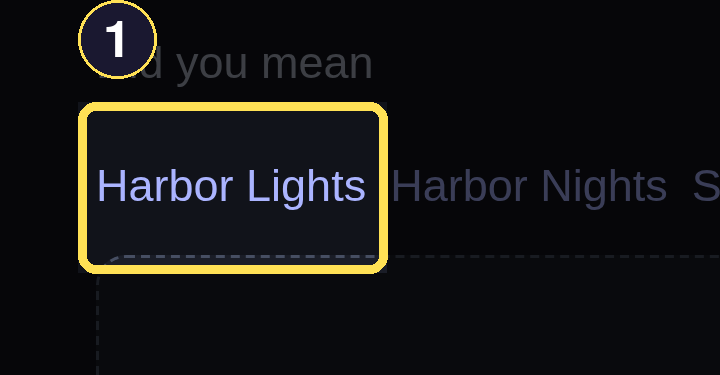
- Choose a Did you mean chip to search its exact spelling.
Filter by romance.io facts in Explore
Desktop
- Choose the romance.io link shown above your Catalog results (or Explore romance.io under More → Browse) to open Explore.
- Review a result's romance.io rating, votes, and page count, or narrow first with the trope, steam, pages, rating, and year filters. A result is a normal Catalog Book with its normal acquire control — there is no separate step to add it.

- romance.io's rating and page count appear as community 4.30★ (400 votes) · 300 pages.
Phone
- Choose More, then Browse, then Explore romance.io — or choose the romance.io link from a Search page.
- Review a result's romance.io rating, votes, and page count, or narrow first with the trope, steam, pages, rating, and year filters. A result is a normal Catalog Book with its normal acquire control — there is no separate step to add it.
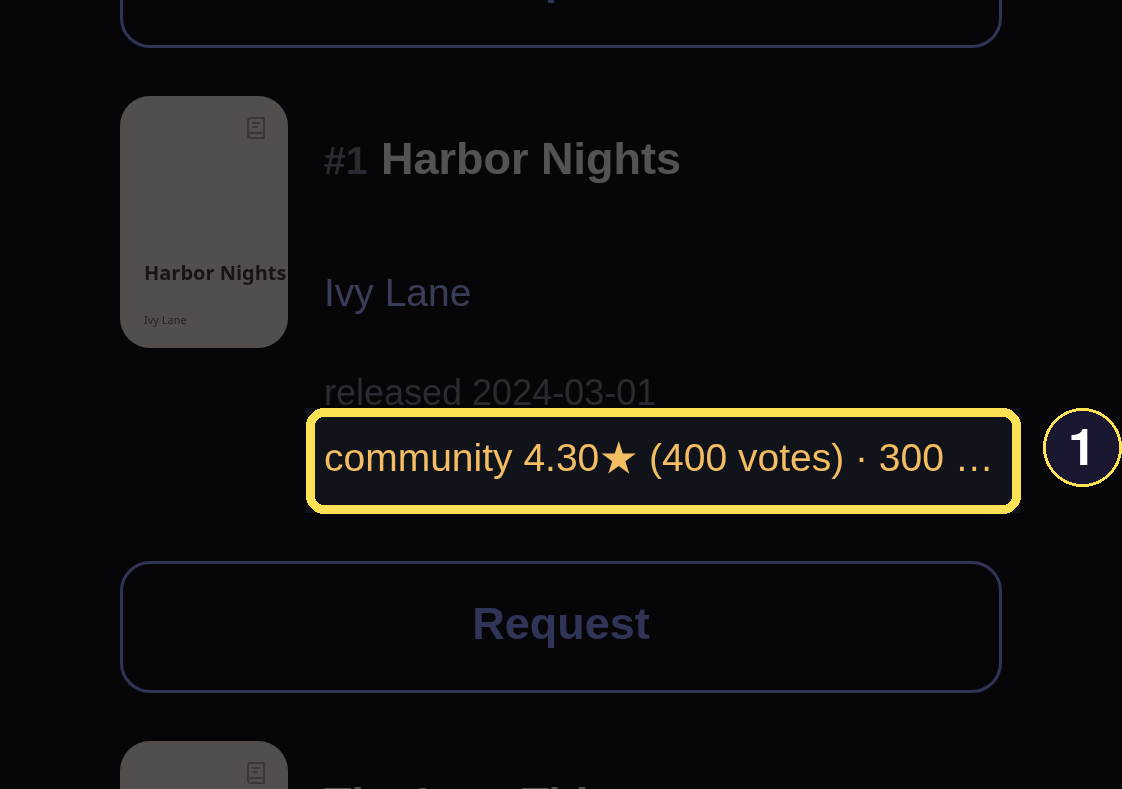
- romance.io's rating and page count appear as community 4.30★ (400 votes) · 300 pages.
A Book whose romance.io data has since gone unavailable still shows in Explore — its facts line reads "romance.io data is unavailable for this title" instead of a rating, but the Book itself, and any file you already have for it, stay exactly as they were. Opening a Book that BookNotification found on the Search page adds it to your Catalog as a normal Book; that import adds metadata only, so use the normal Request control once you're there when you want the file.