Notifications
Notifications are a permanent, per-reader ledger of meaningful events — they never auto-delete, and this app has no separate pop-up "toast" that flashes past and is gone. If a Book you requested becomes ready, a watched Author releases something new, or a request fails, the event is written here and stays until you act on it. This article covers reading that ledger, what actually creates a row, marking rows read or unread, and reading a grouped digest.
Your notification ledger
Desktop
- Choose the notifications bell in the header. An unread pill appears on it whenever you have something unread.
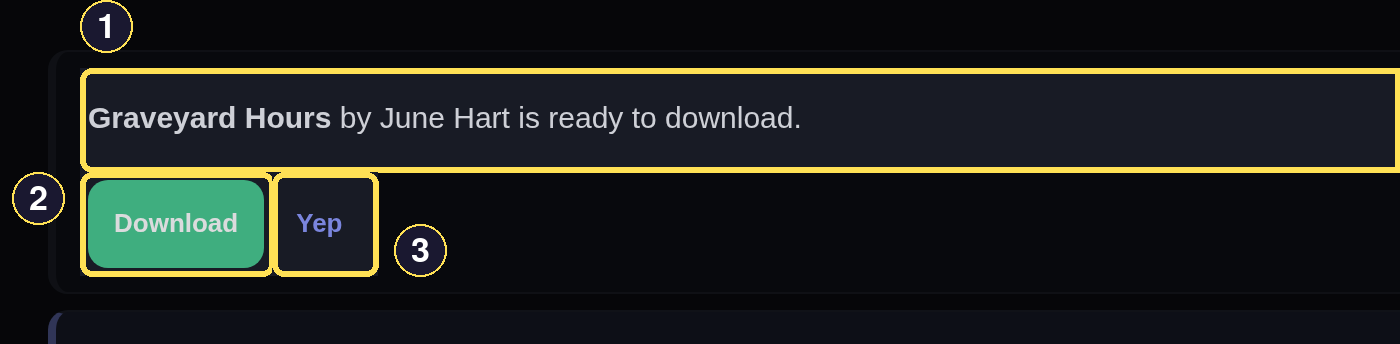
- Every row reads as one sentence naming the Book and what happened — never a raw type or id.
- A ready Book offers Checkout right on its row.
- This toggle clears or restores the row's unread flag; its word rotates instead of always reading "Mark read."
- Look at the far right of the same row for when it happened. A desktop row is wider than this page, so its right end is shown on its own here.
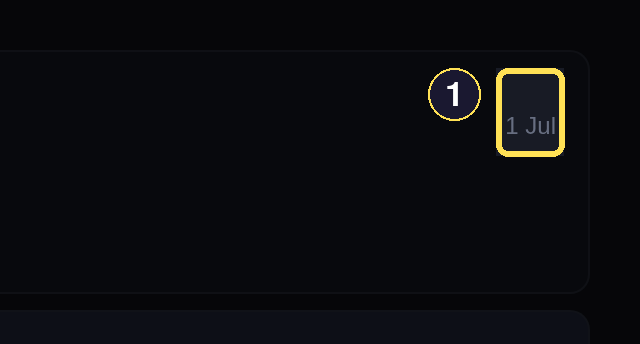
- A relative time — "3 hours ago," not a raw timestamp.
Phone
- Choose the notifications bell in the header. An unread pill appears on it whenever you have something unread.
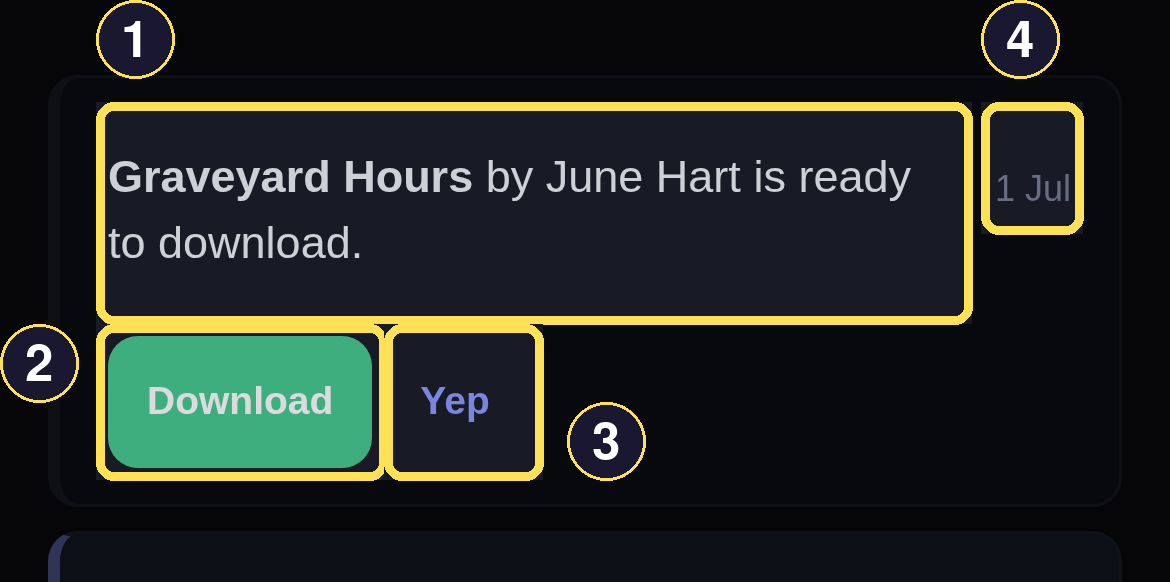
- Every row reads as one sentence naming the Book and what happened — never a raw type or id.
- A ready Book offers Checkout right on its row.
- This toggle clears or restores the row's unread flag; its word rotates instead of always reading "Mark read."
- A relative time — "3 hours ago," not a raw timestamp.
The bell is the one nav item reachable the same way at every viewport, unlike Bookmarks, which sits inside the More sheet rather than the header nav itself. There's no per-type on/off switch for notifications today — every event that reaches you lands in this one ledger.
What creates a notification
Some real examples, by what actually happened:
| What happened | Starts as |
|---|---|
| Your requested Book is ready to download, with a Checkout action right on the row | Unread |
| A watched Author or Series releases a new Book | Unread |
| Several releases arrive at once from one Author or Series you watch, folded into one grouped digest — see Expand and read a grouped digest | Unread |
| Your request hit a real failure | Unread |
| Your request missed and is still being retried, or a future Book is pre-ordering | Unread |
| Your request was cancelled — by you, or automatically after repeated misses | Unread |
| You set a star rating, added a tag, or saved a comment | Read — a receipt, not an alert |
| You signed in | Hidden and read — low-signal |
Mark notifications read, unread, or all at once
Desktop
- Scroll an unread row into view — it marks itself read the instant it's actually on screen, no click required.
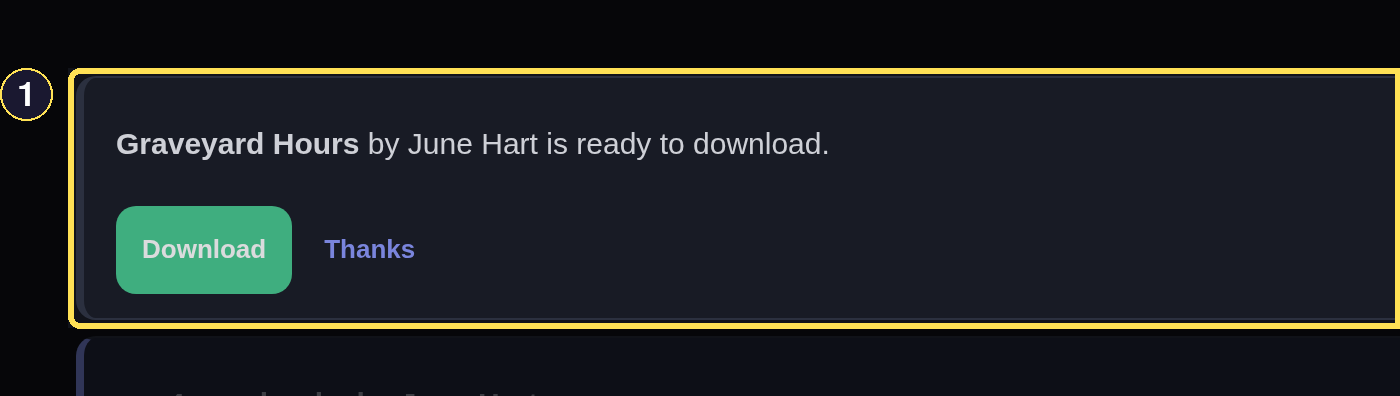
- Simply scrolling this row into view marked it read — no click needed.
- Or flip it by hand at any time: every row's own toggle (shown earlier in Your notification ledger) reads one of nine short words instead of "Mark read" — Cool, Okay, Got it, Sure, Fine, Thanks, Yep, OK, or Yes — and switches to Mark unread once the row is read.
- When several rows are unread, choose that same style of button in the page header instead, and it clears every one of them, groups included, in one choice.
- The unread count drops to zero for every row at once, groups included.
Phone
- Scroll to bring an unread row on screen — it marks itself read the moment it's actually visible, without a tap.
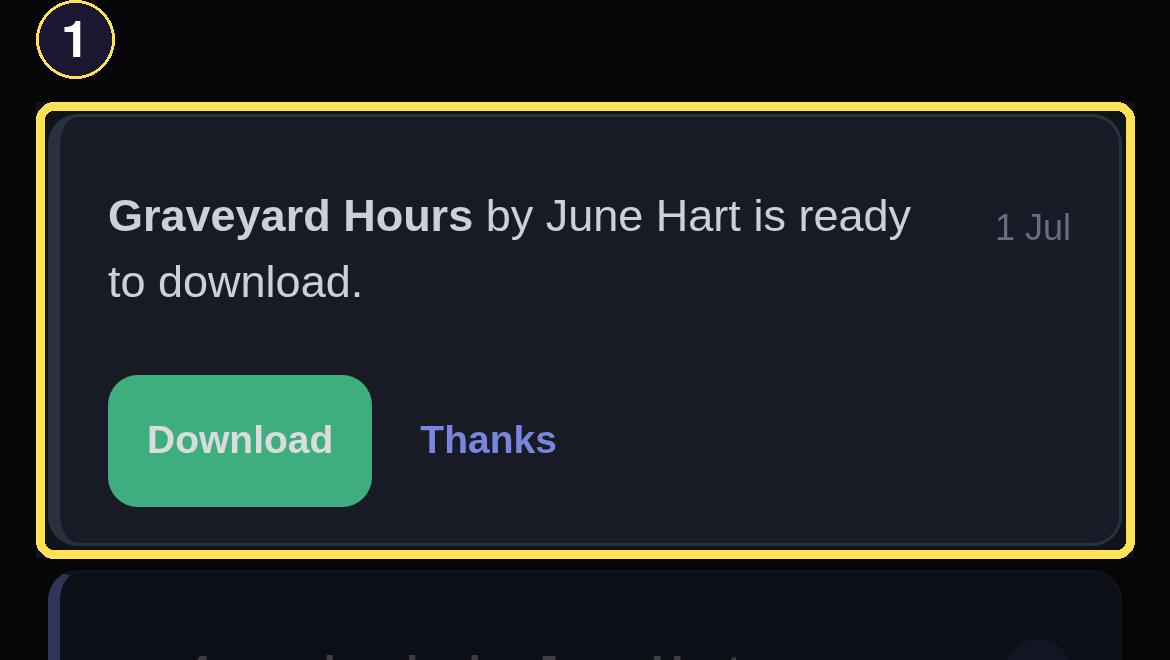
- Simply scrolling this row into view marked it read — no click needed.
- Or tap it by hand instead: the row's own toggle (shown earlier in Your notification ledger) reads one of nine short words rather than "Mark read" — Cool, Okay, Got it, Sure, Fine, Thanks, Yep, OK, or Yes — and becomes Mark unread once the row is read.
- With several rows unread, tap the matching button in the page header instead to clear all of them at once, groups included.

- The unread count drops to zero for every row at once, groups included.
A row only ever becomes read by an explicit tap or a real appearance in your viewport — the "acquisition ready" example above becomes read the moment its Checkout action actually scrolls into view, not just because the page loaded.
Expand and read a grouped digest
A burst is the clearest example: when a watched Author's several new Books all arrive at once, each still gets its own permanent row, but the ledger reads them as one line instead of several until you open it.
Desktop
- A grouped digest starts collapsed, reading as a single summary line with a count badge showing how many rows it folds together.
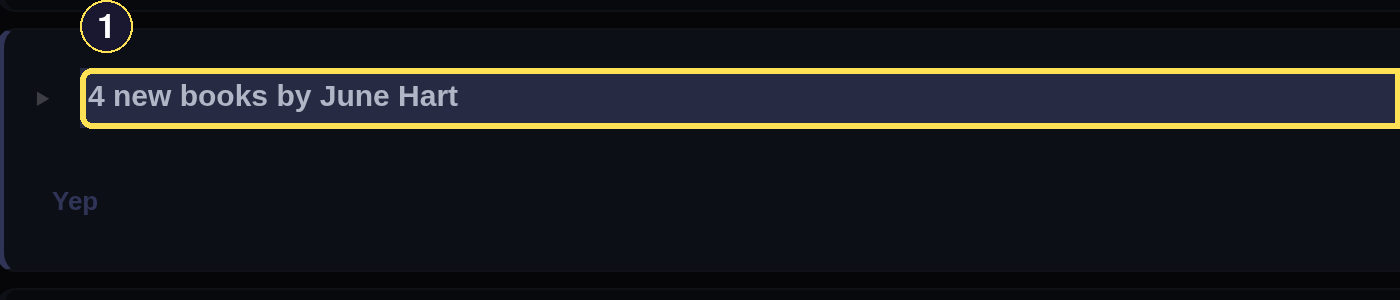
- "4 new books by June Hart" — one line for every release that arrived together from an author you watch.
- Read the badge at that line's right end for the count. A digest line runs the width of the page, so its right end is shown separately here.
- The count badge says how many rows are folded into this one line.
- Choose the summary line to expand it and read the releases inside; the group's own toggle, below the list, acknowledges or re-flags every member together in one choice.
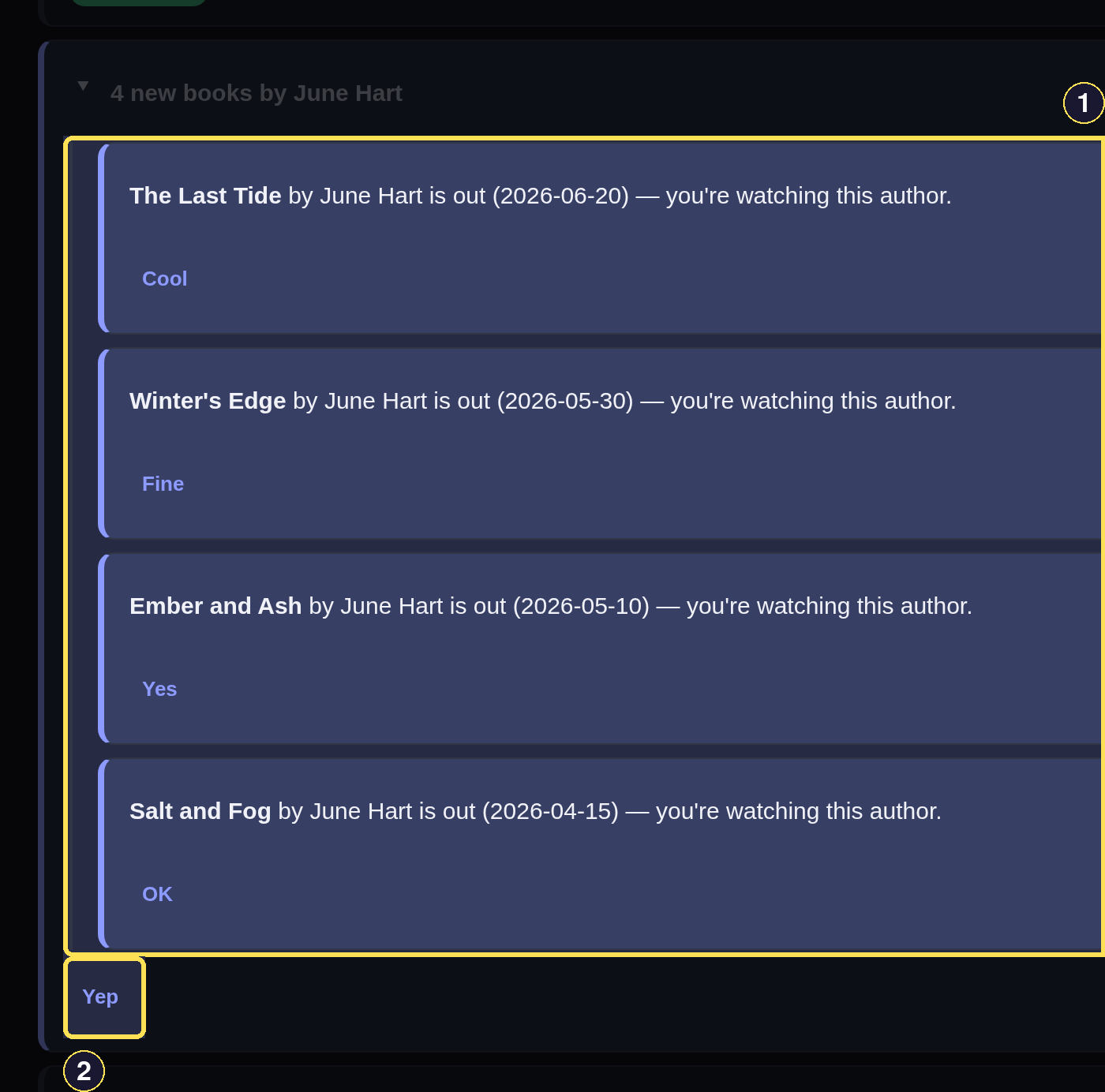
- Expanding shows the four individual releases — each keeps its own read state.
- The group's own toggle acknowledges or re-flags every member together.
Phone
- A grouped digest starts collapsed, reading as a single summary line with a count badge showing how many rows it folds together.
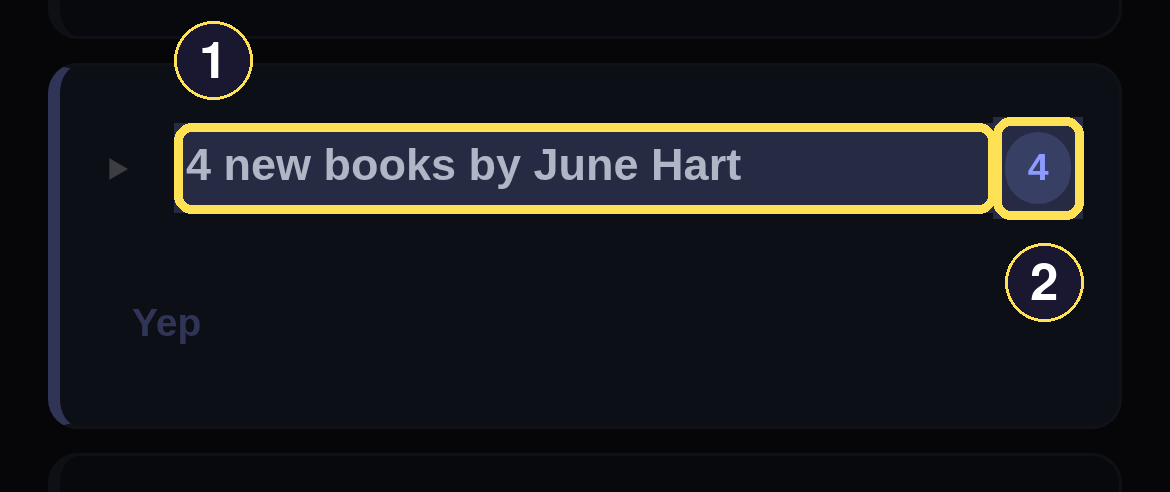
- "4 new books by June Hart" — one line for every release that arrived together from an author you watch.
- The count badge says how many rows are folded into this one line.
- Tap the summary line to expand it and read the releases inside; the group's own toggle, below the list, acknowledges or re-flags every member together in one tap.
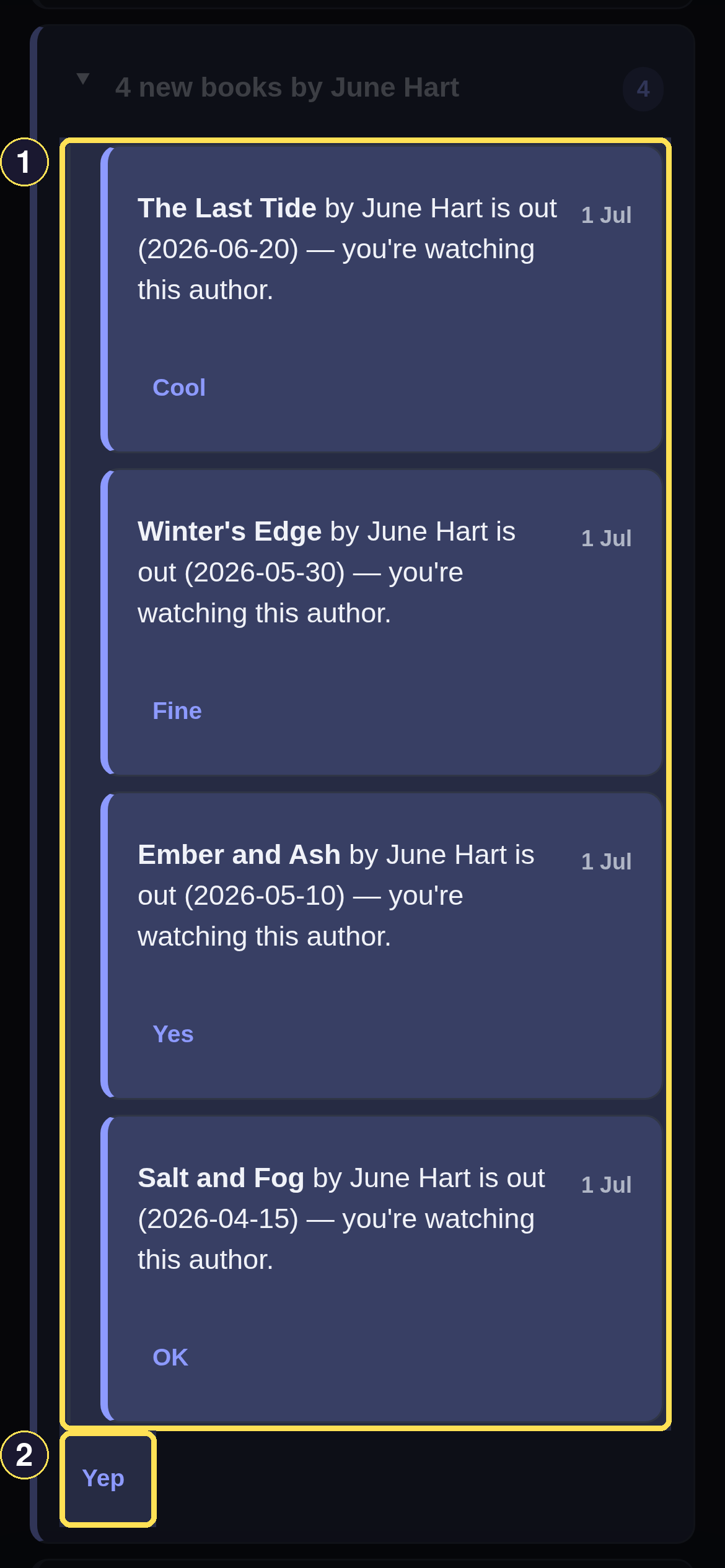
- Expanding shows the four individual releases — each keeps its own read state.
- The group's own toggle acknowledges or re-flags every member together.
Reading the digest is not the same as reading its members: expanding it, or scrolling the summary line into view, does not mark the four Books inside it read. Each keeps its own state until you either read it individually or use the group's own toggle to mark every member at once.