Report an Issue
Report an issue is the in-app bridge for flagging a problem — a bad or unreadable file, wrong metadata, or something broken — without leaving the app. It's built into every signed-in page, and it already knows which page you were on when you opened it.
Open the report form
Desktop
- At the bottom of any page's content, choose Report an issue to expand it.
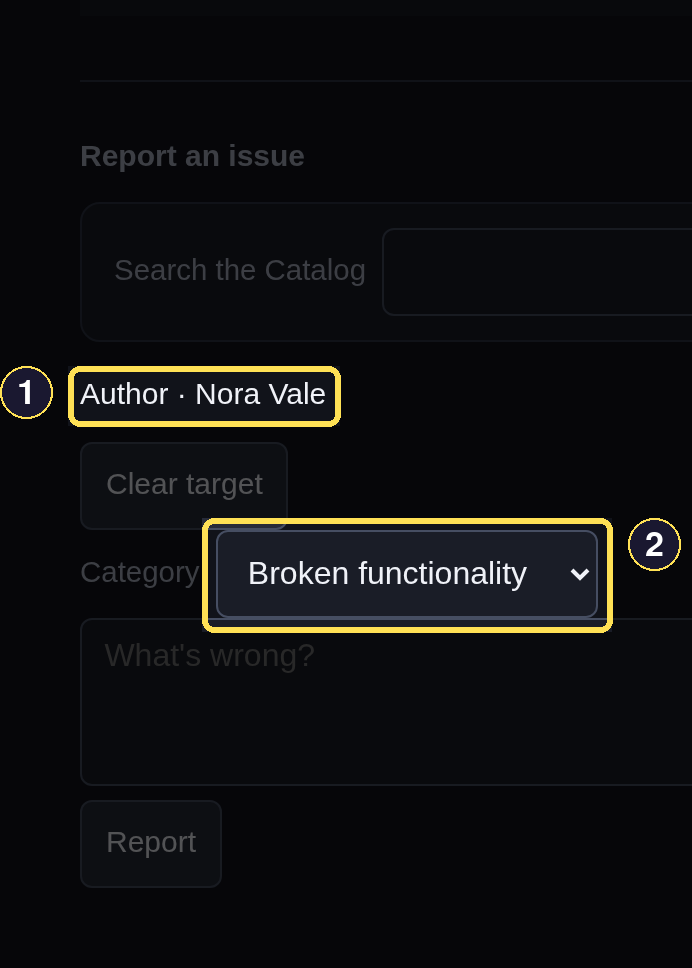
- The report already names the page you were on.
- Category narrows what kind of problem this is.
Phone
- At the bottom of any page's content, above the tab bar, choose Report an issue to expand it.
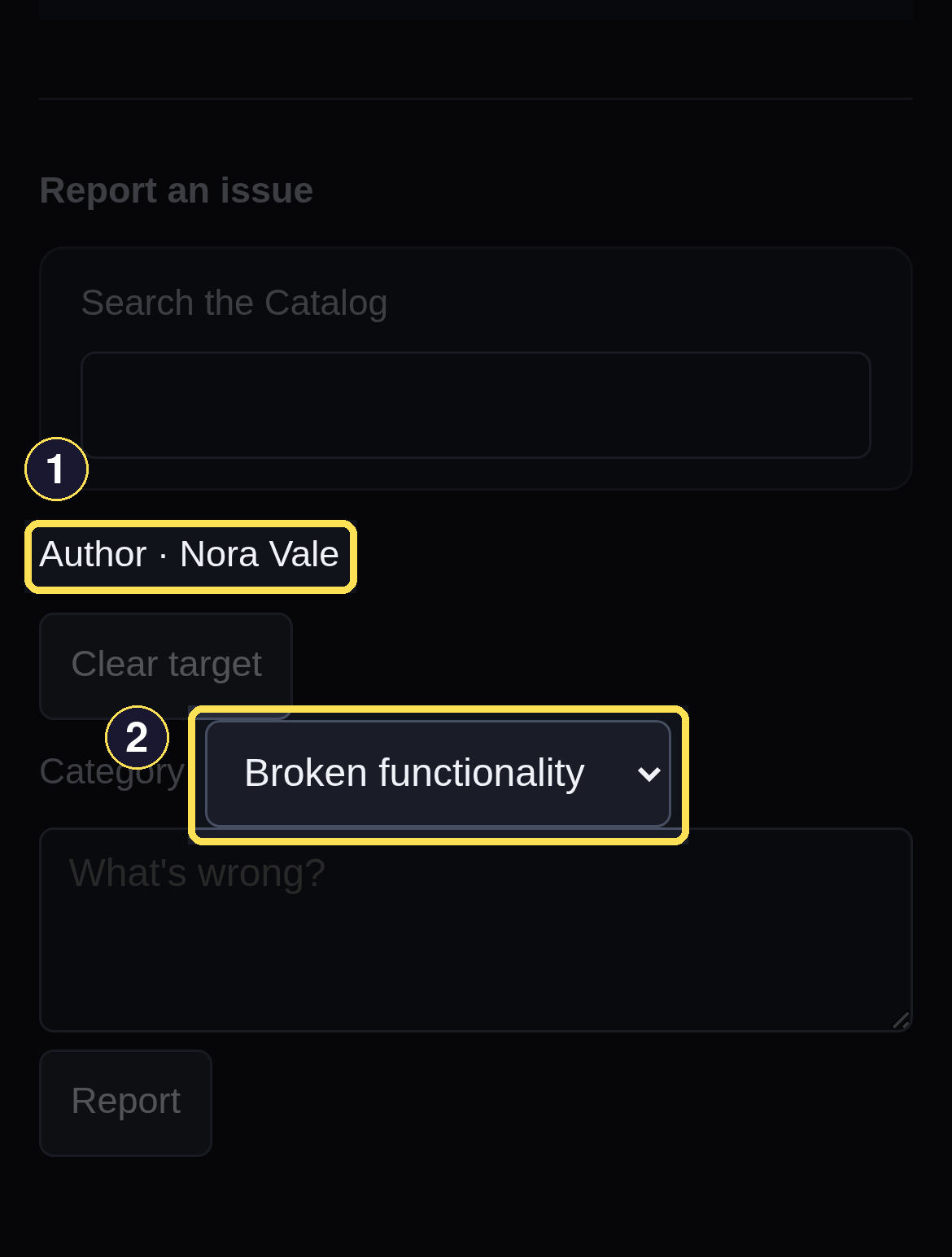
- The report already names the page you were on.
- Category narrows what kind of problem this is.
Choose what the report is about
Opening the form on a Book, Author, or Series page starts with that page's own name already selected as the target, shown next to the form — you never type or read an ID. Opening it anywhere else starts as a general report about the current page, with no Book, Author, or Series attached.
Desktop
- Choose Search the Catalog and type a Book title, Author name, or Series name.
- Choose a result from the list to make it the report's target.
- Choose Clear target to fall back to a general report about the current page, with no Book, Author, or Series attached.
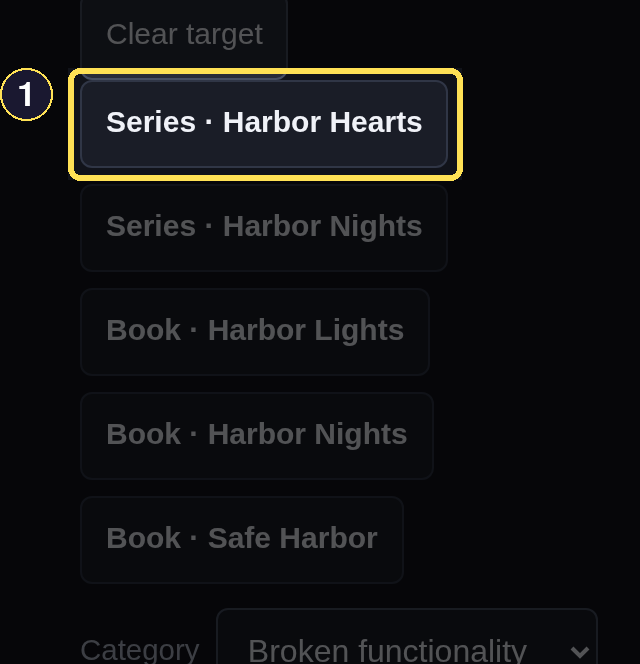
- Choose a result to make it this report's target.
A search with no matches reads "No matching Books, Authors, or Series in your Catalog." instead of showing an empty list.
Phone
- Choose Search the Catalog and type a Book title, Author name, or Series name.
- Choose a result from the list to make it the report's target.
- Choose Clear target to fall back to a general report about the current page, with no Book, Author, or Series attached.
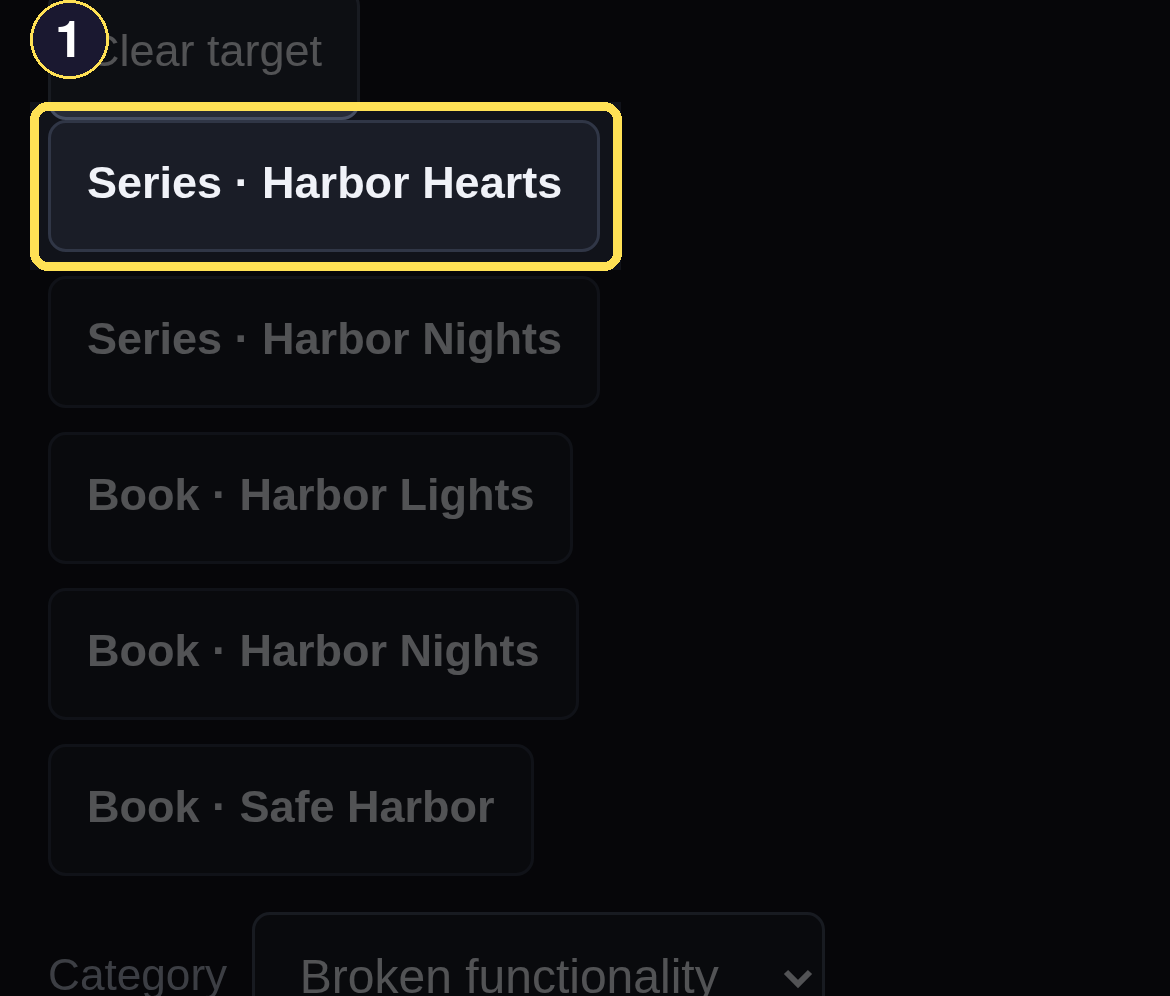
- Choose a result to make it this report's target.
A search with no matches reads "No matching Books, Authors, or Series in your Catalog." instead of showing an empty list.
Choose a category and describe the problem
Desktop
- Choose a Category — Bad / unreadable file, Wrong metadata, Broken functionality (the default, pictured above), or Other.
- Describe what happened in the text box.
- Choose Report to submit it.
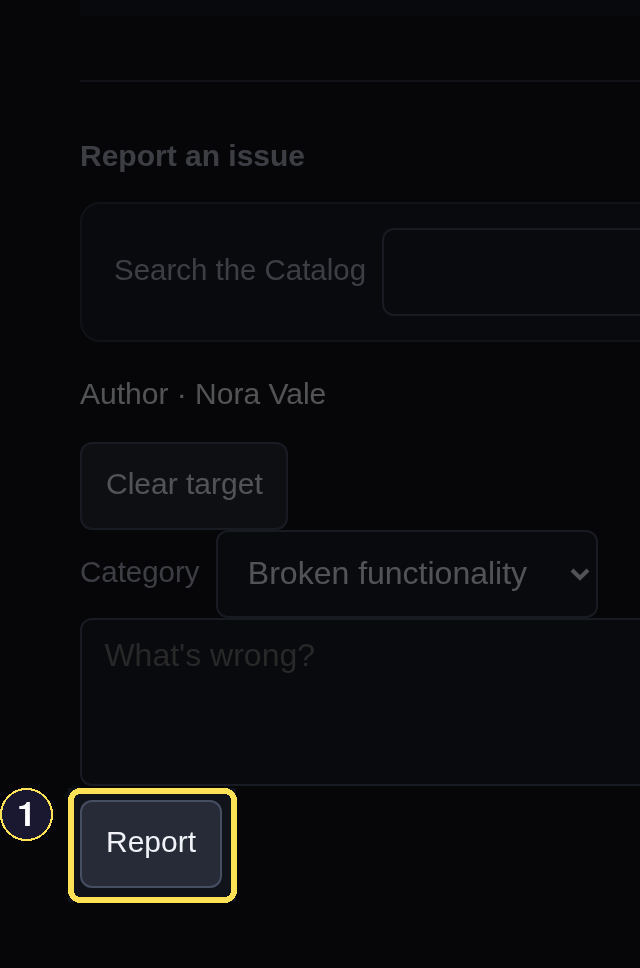
- Report submits the issue.
Phone
- Choose a Category — Bad / unreadable file, Wrong metadata, Broken functionality (the default, pictured above), or Other.
- Describe what happened in the text box.
- Choose Report to submit it.
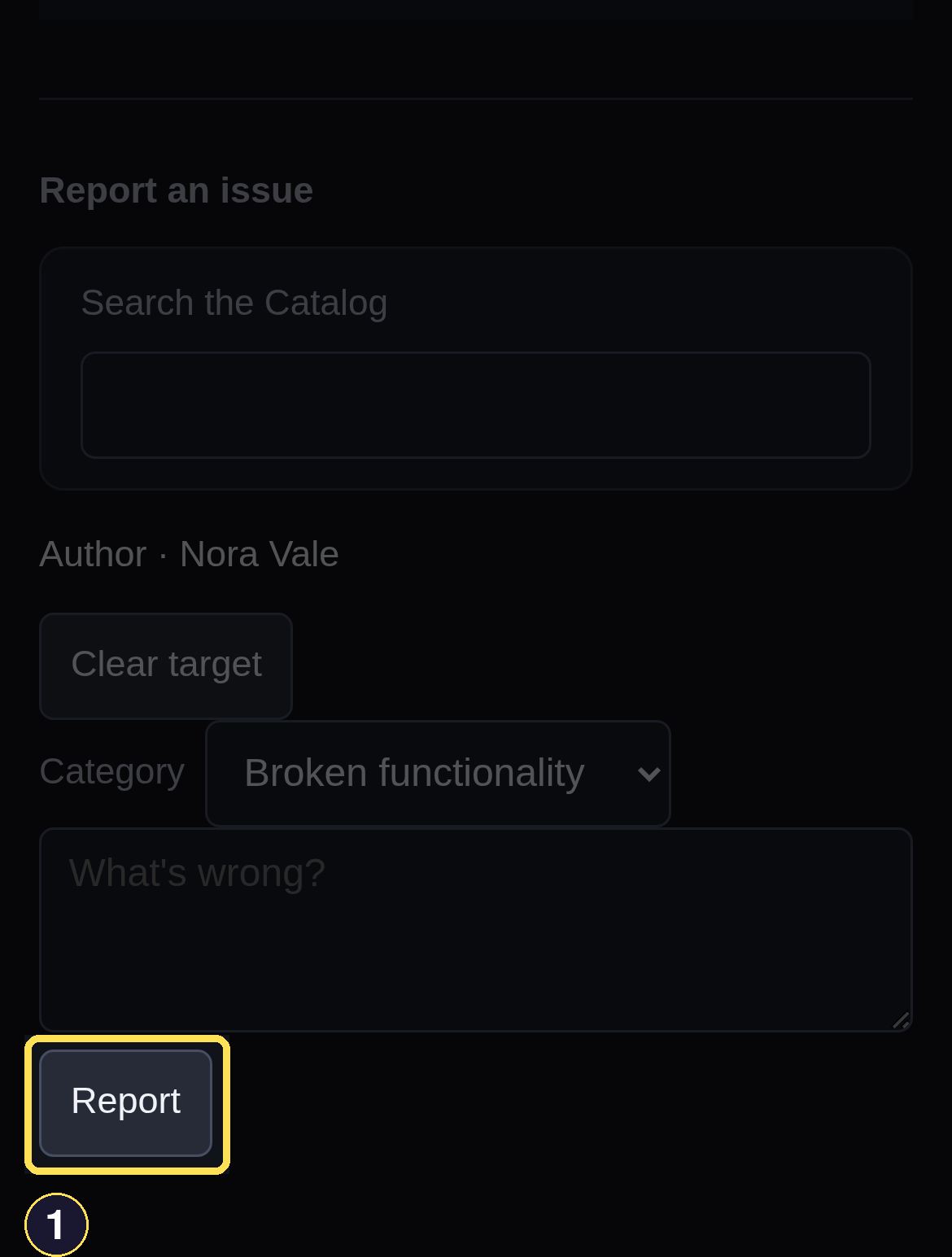
- Report submits the issue.
Choosing Bad / unreadable file on a Book you already own does one more thing quietly: it queues a re-fetch of that Book's file in the background. Nothing changes on screen right away — if the re-fetch lands, you'll see it later as a fresh acquisition-ready notification.
See what happens after you submit
Submitting returns you to My Issues, where your report appears newest first.
Desktop
Use the Open, Closed, and All chips at the top of My Issues to filter the list; each one shows its own count.
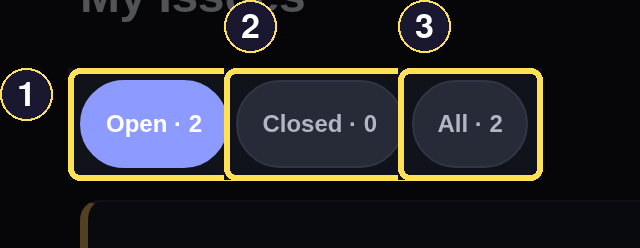
- Open shows reports still unresolved.
- Closed shows reports that were resolved.
- All shows every report you've filed.
Phone
Use the Open, Closed, and All chips at the top of My Issues to filter the list; each one shows its own count.
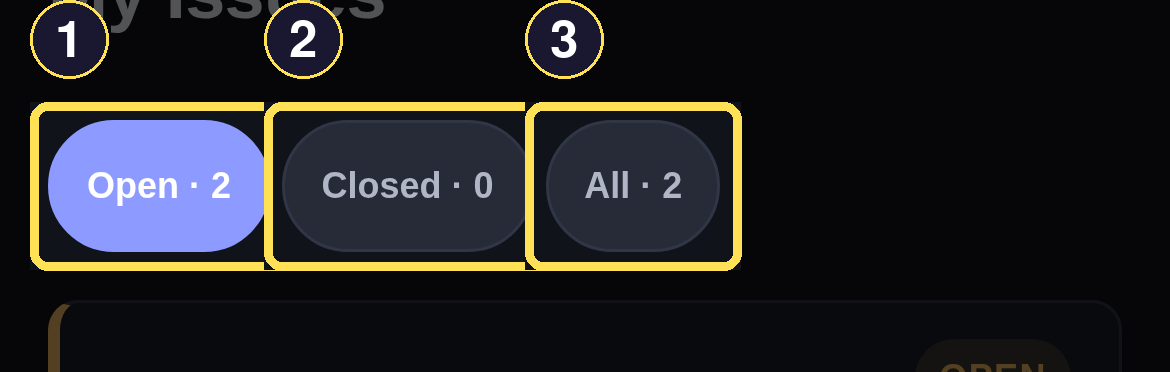
- Open shows reports still unresolved.
- Closed shows reports that were resolved.
- All shows every report you've filed.
If this instance forwards reports to an external tracker, your row may later add a plain
Tracked as #123-style note once the tracker files it — you can't follow the link (that's
admin-only), but you can see that it happened. When someone resolves it, the row moves to Closed
and shows what was resolved.
Edit or withdraw your own report
Desktop
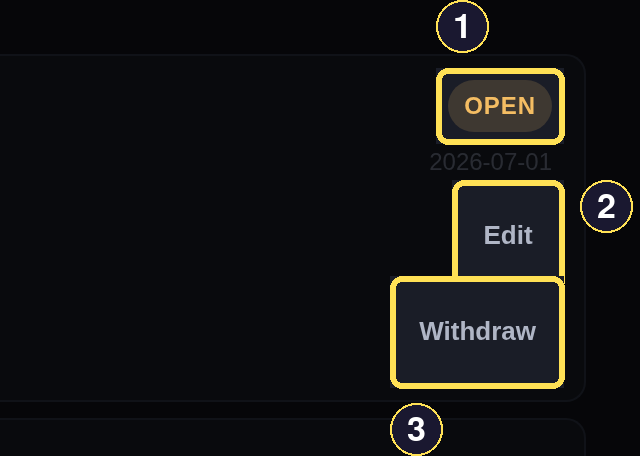
- OPEN while a report is unresolved.
- Edit updates your report's wording.
- Withdraw removes it from your open reports.
- Choose More in the header, then My Issues.
- While your report is still OPEN, choose Edit to change its wording, then Save.
- Choose Withdraw to remove it instead. A confirm dialog asks "Withdraw this report? This can't be undone." before it takes effect.
Phone
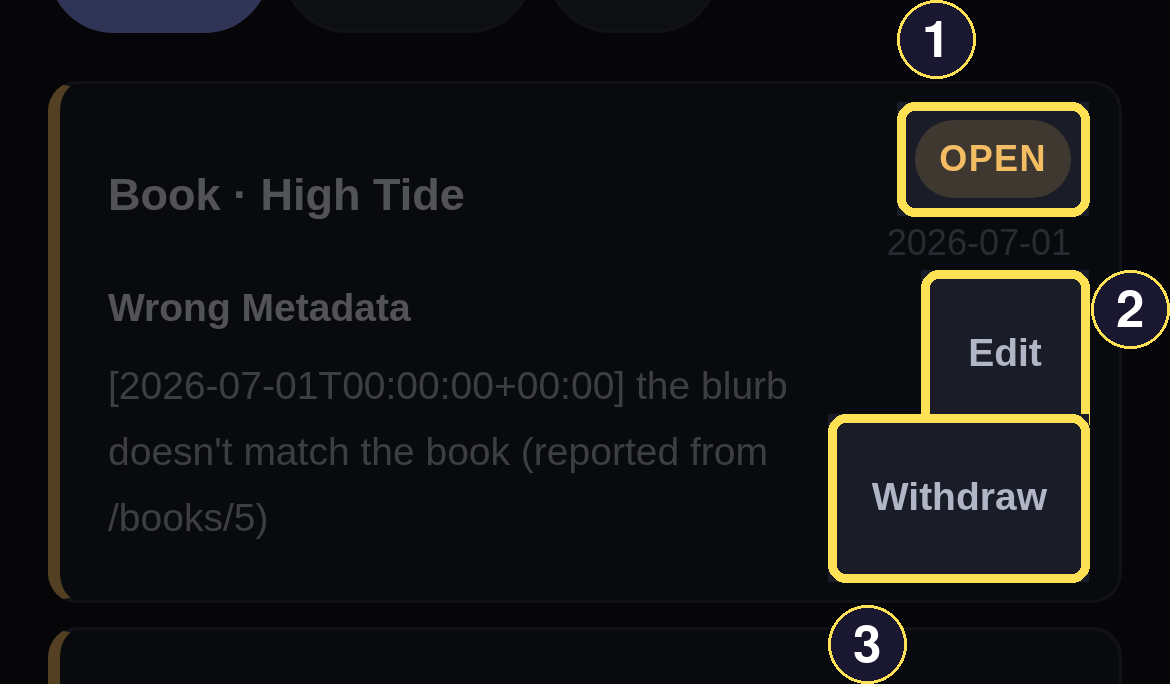
- OPEN while a report is unresolved.
- Edit updates your report's wording.
- Withdraw removes it from your open reports.
- Choose More in the bottom tab bar, then My Issues.
- While your report is still OPEN, choose Edit to change its wording, then Save.
- Choose Withdraw to remove it instead. A confirm dialog asks "Withdraw this report? This can't be undone." before it takes effect.
Neither control appears once a report is settled (closed or withdrawn), and neither is offered on a report the app opened for you automatically — only a report you filed by hand can be edited or withdrawn.