Bookmarks and Watch Releases
Bookmark saves something for you to find again — a passive save with no other effect: no Request, no notification, no refresh change. Watch is an active subscription on an Author or Series — never a single Book — that tells you when they release something new. They live beside each other on the same pages but do different jobs; this article covers both, plus what to expect from Watch once you've turned it on and walked away.
Bookmark a Book, Series, or Author
Desktop
- Open any Book, Series, or Author page.
- Choose Bookmark. It swaps in place to Bookmarked — no page reload.
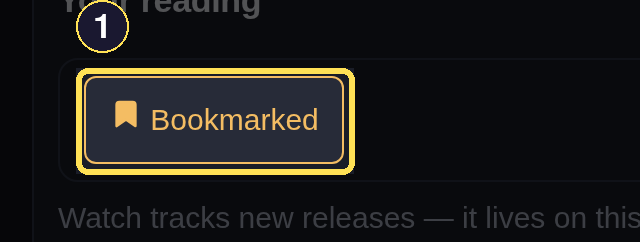
- Bookmarked replaces Bookmark in place — no page reload.
Choose More in the header, then choose Bookmarks to see everything you've saved.
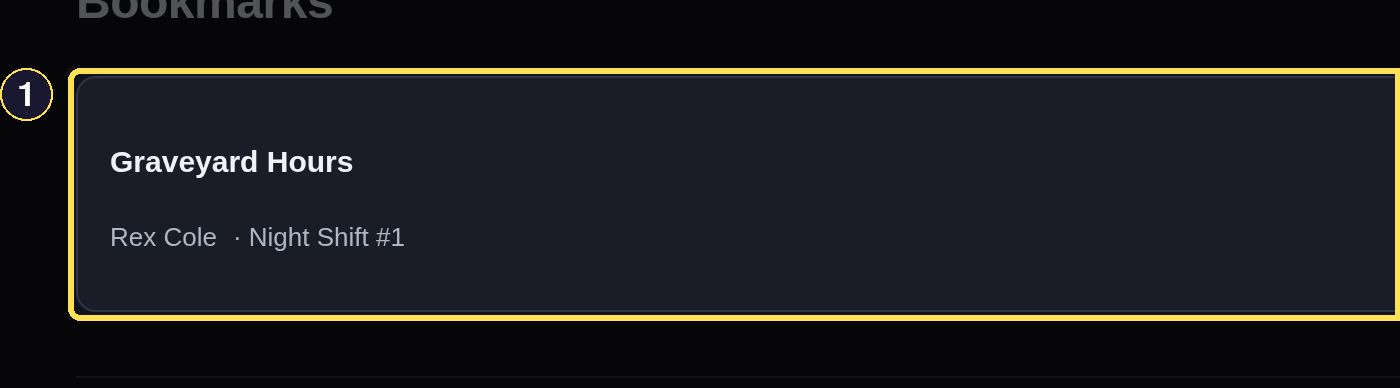
- Every saved Book, Series, or Author lands here, newest first.
To drop something, choose Unsave at its row's right end. A Bookmarks row spans the page, so its right end is shown on its own here.
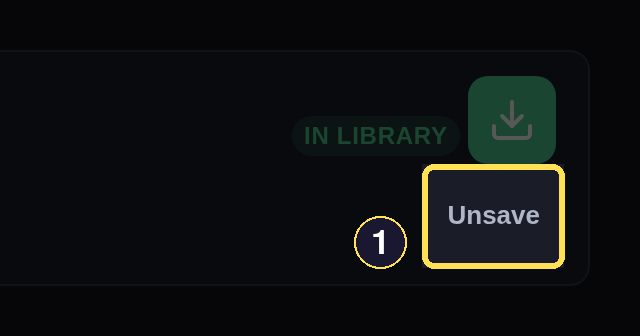
- Unsave removes it from Bookmarks; nothing else changes.
Phone
- Open any Book, Series, or Author page.
- Choose Bookmark. It swaps in place to Bookmarked — no page reload.
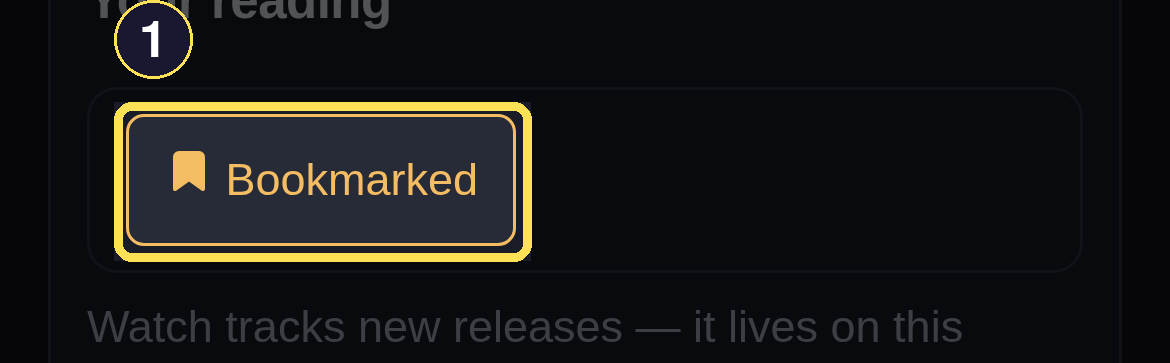
- Bookmarked replaces Bookmark in place — no page reload.
Choose More in the bottom tab bar, then choose Bookmarks to see everything you've saved.
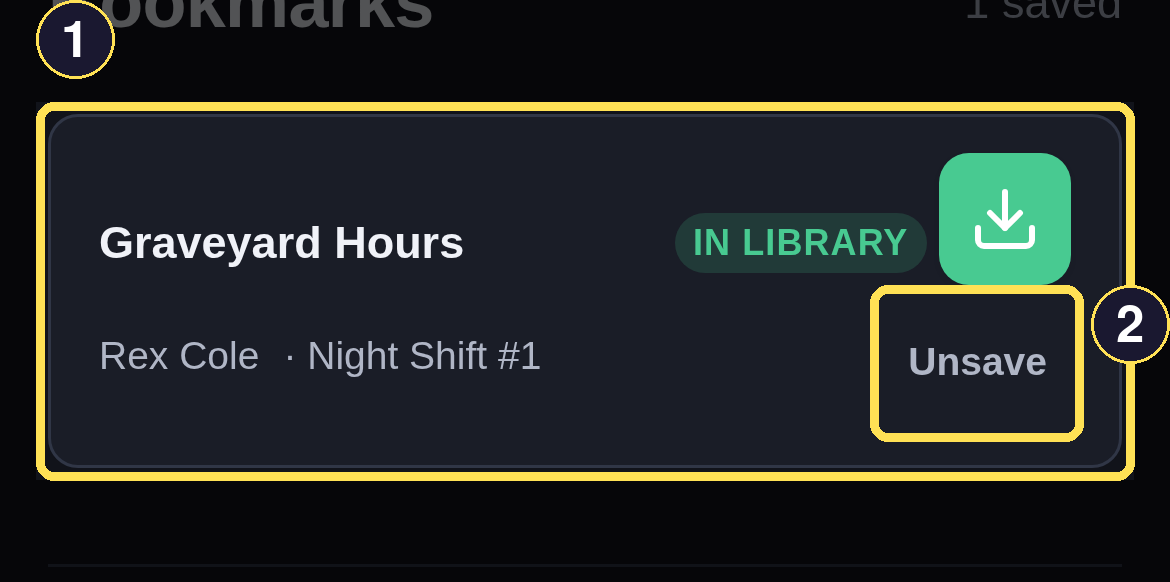
- Every saved Book, Series, or Author lands here, newest first.
- Unsave removes it from Bookmarks; nothing else changes.
A Book bookmark's row carries its full context — cover, author, series, status, the acquire control — the same row kit the Library uses. A Series or Author bookmark instead shows a plain title and a type pill, since there's nothing to acquire about a Series or Author itself.
Watch an Author or Series for future releases
Watch is Author/Series only. A Book page says so directly, rather than offering a control that would silently do nothing: Watch tracks new releases — it lives on this book's author and series pages, not here.
Desktop
- Open an Author or Series page you don't yet watch.
- Choose Watch releases. It swaps in place to Watching releases, the same way Bookmark does, right beside it.
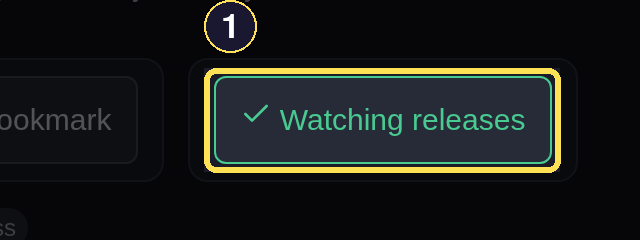
- Watching releases replaces Watch releases — Bookmark stays a separate control beside it.
The same control, with the same two labels, sits on an Author page too:
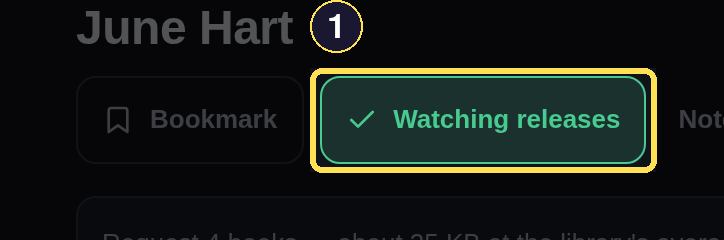
- Watch works the same way on an Author page — never on a single Book.
Phone
- Open an Author or Series page you don't yet watch.
- Choose Watch releases. It swaps in place to Watching releases, the same way Bookmark does, right beside it.
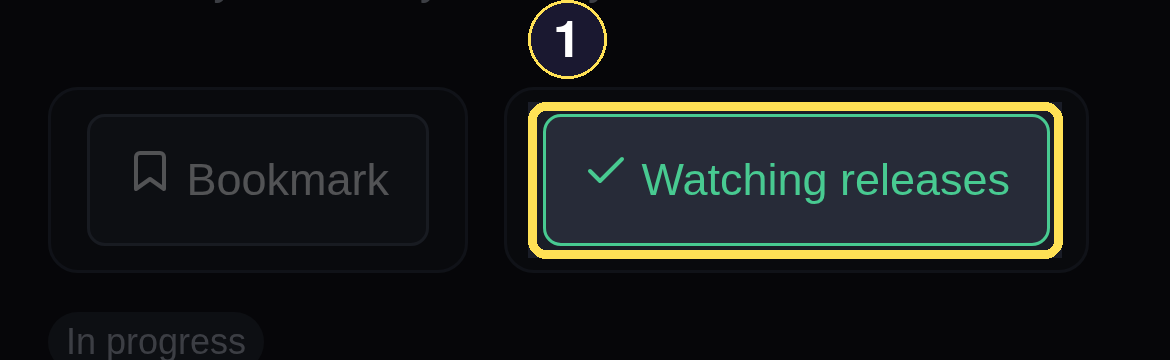
- Watching releases replaces Watch releases — Bookmark stays a separate control beside it.
The same control, with the same two labels, sits on an Author page too:
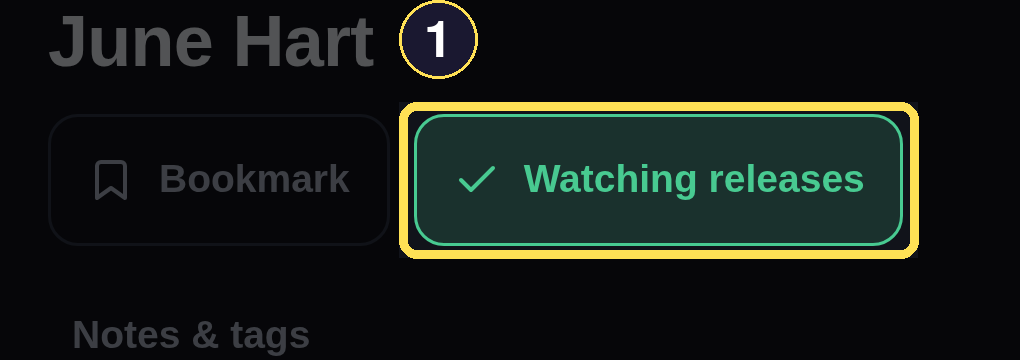
- Watch works the same way on an Author page — never on a single Book.
Requesting a Book auto-subscribes you to its Author(s) too — wanting the Book already says you're interested — and a Did Not Finish on that Author's Book removes the subscription again, exactly as if you'd clicked the button yourself.
What to expect without further action
Watch never requests or downloads anything by itself. Once it's on, three things happen without you doing anything else:
- New-release notifications. When a watched Author or Series gets a new Book, your ledger gets a plain-language row for it — the Book's title and author, that it's out, its release date, and a reminder that you're watching this author, never a raw type or id — see What creates a notification.
- Faster refresh. A watched Author or Series gets checked for new releases far more often than one you don't watch, and even more often once a release is close — and the moment you first watch something BookNotification hasn't reached yet, a check is queued right away instead of waiting for its next regular turn.
- Shelf surfacing. New releases from what you watch surface on your Shelf without a search.
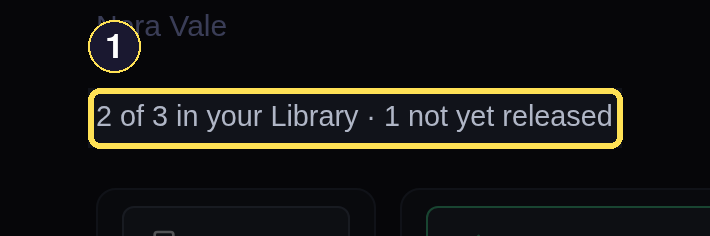
- One Ember Falls Book is not yet released — exactly what Watch exists to announce.
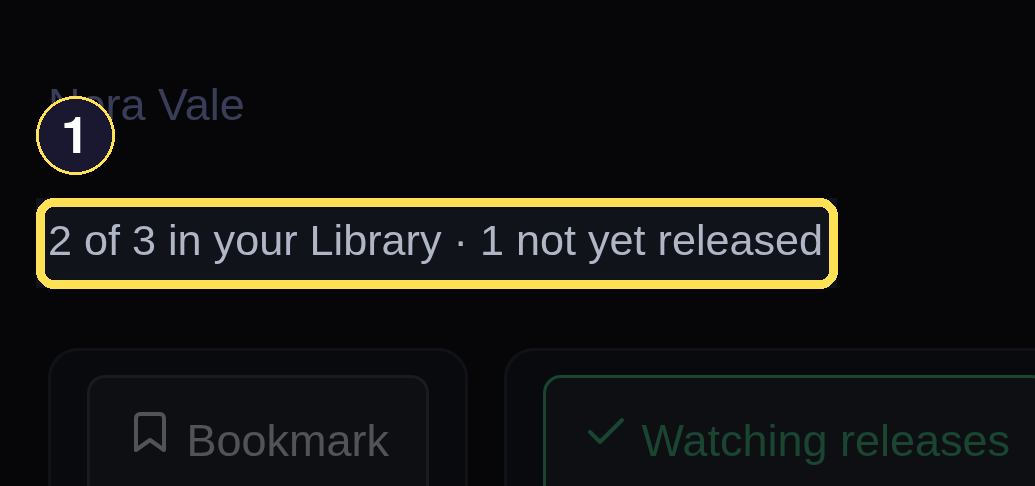
- One Ember Falls Book is not yet released — exactly what Watch exists to announce.
You still choose whether and when to request whatever Watch turns up — it only ever tells you; it never acquires on your behalf.