Request Books and Series
Choose Request to tell smutslut to get a file into the shared Library. A request records what you want; acquiring the file happens next, on smutslut's own schedule, and the acquire control updates itself in place as that happens — you never need to reload the page to see where things stand.
Request a book
Desktop
- Open a Book that shows Request instead of its ready-to-check-out control, then choose Request. Below 20 tickets of headroom smutslut confirms first with Request this book? Uses one ticket. — accept to continue.
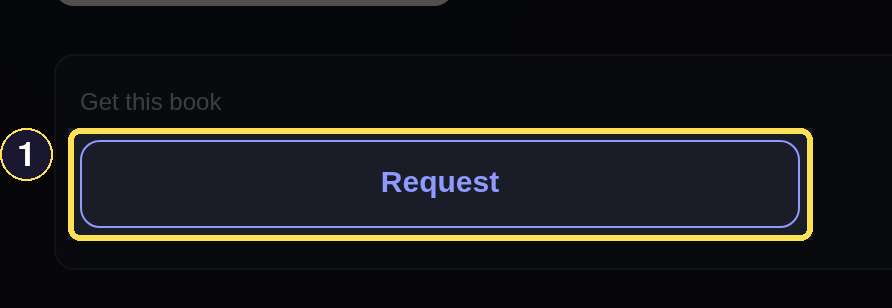
- Request starts an acquisition for this Book.
- Watch the control update in place: Queued… right away, or Queued · position N once another request of yours is already ahead of it in the queue. Both are visible together whenever two of your requests are waiting at once, like these two rows on an Author page — each also keeps a Cancel request button while it's in flight.
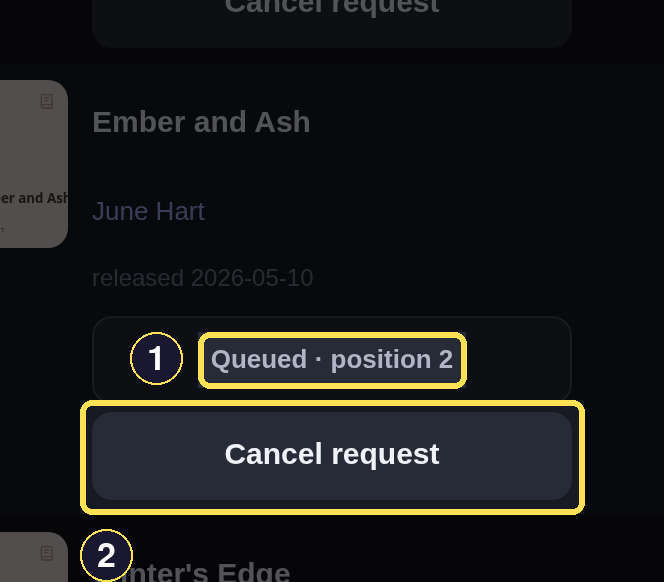
- A queue position appears once another request is genuinely ahead of it.
- Cancel request works while a request is queued, searching, or fetching.
- A Book that hasn't released yet still takes a Request — its control becomes Pre-ordered — we'll grab it at release and waits for the release date instead of failing. A pre-order has no Cancel request button; once requested, it waits for release with no way to call it off before then.
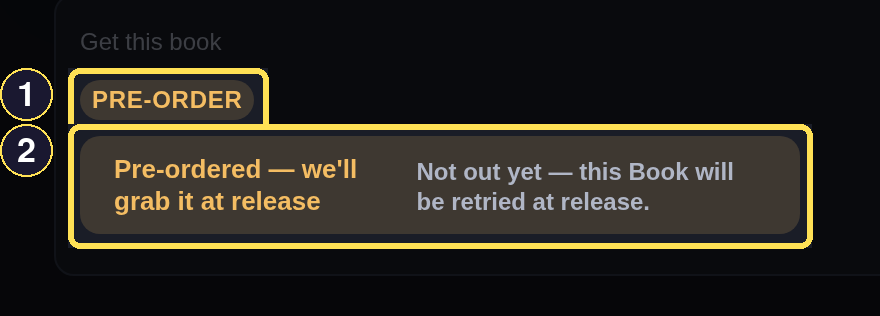
- The Pre-order flag marks a Book that hasn't released yet.
- Pre-ordered — we'll grab it at release replaces the usual queued wording.
Phone
- Use the Search or Discover tab in the bottom bar to open a Book that shows Request, then choose Request. Below 20 tickets of headroom smutslut confirms first with Request this book? Uses one ticket. — accept to continue.
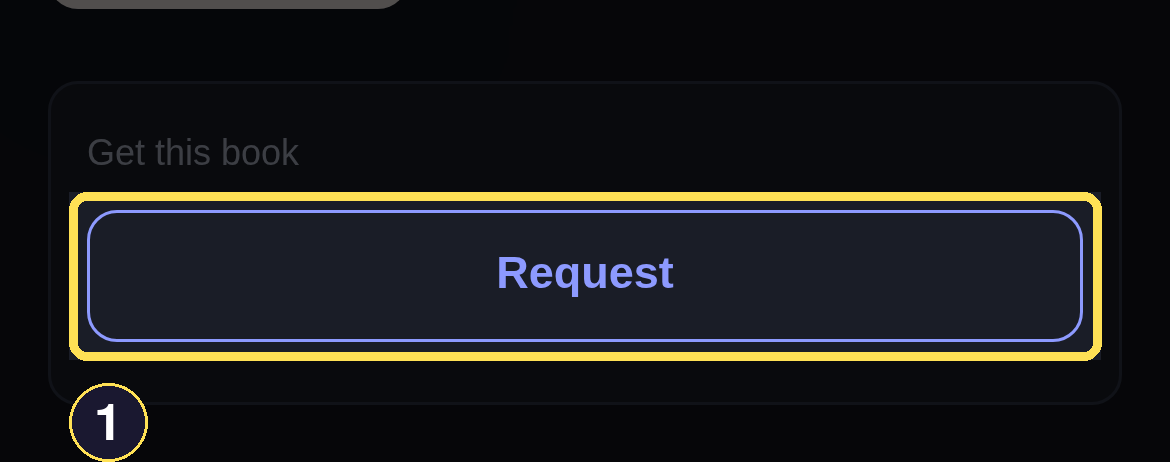
- Request starts an acquisition for this Book.
- Watch the control update in place: Queued… right away, or Queued · position N once another request of yours is already ahead of it in the queue. Both are visible together whenever two of your requests are waiting at once, like these two rows on an Author page — each also keeps a Cancel request button while it's in flight.
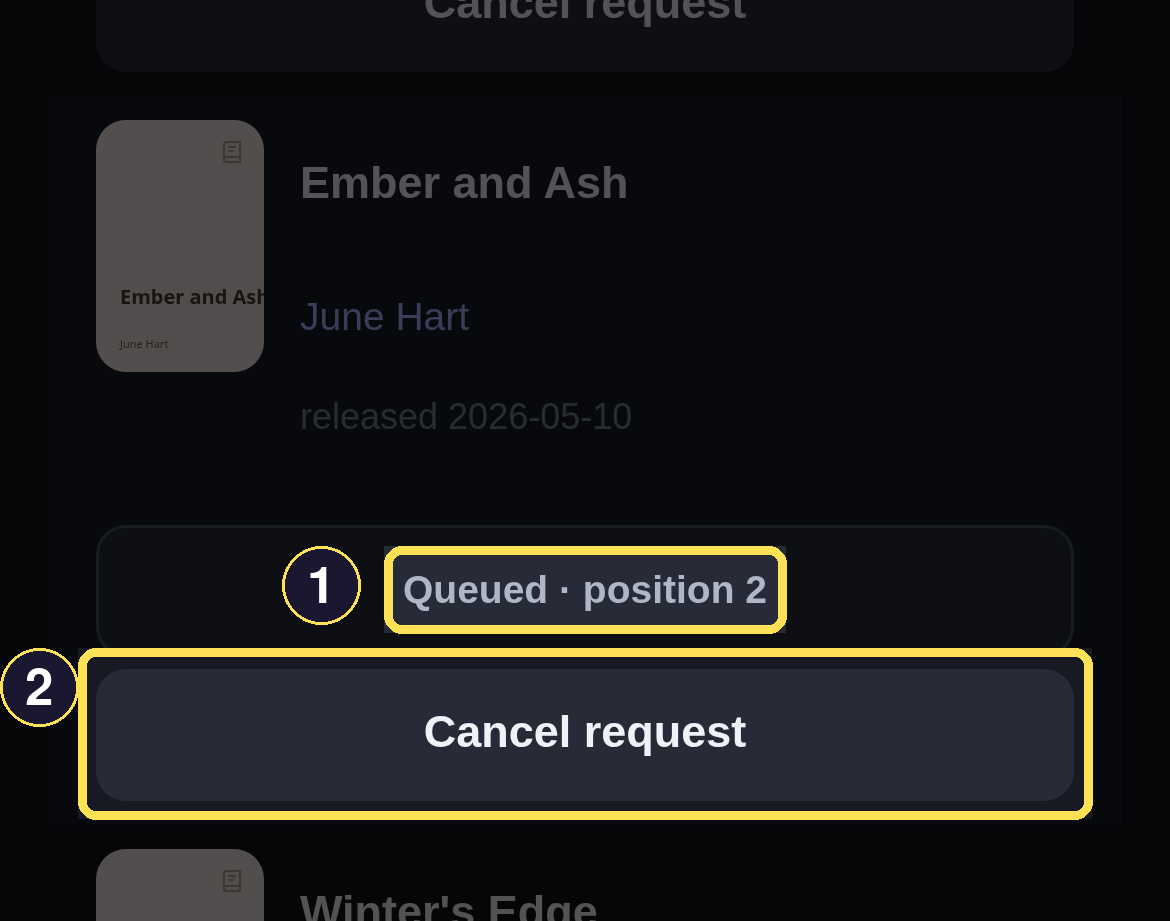
- A queue position appears once another request is genuinely ahead of it.
- Cancel request works while a request is queued, searching, or fetching.
- A Book that hasn't released yet still takes a Request — its control becomes Pre-ordered — we'll grab it at release and waits for the release date instead of failing. A pre-order has no Cancel request button; once requested, it waits for release with no way to call it off before then.
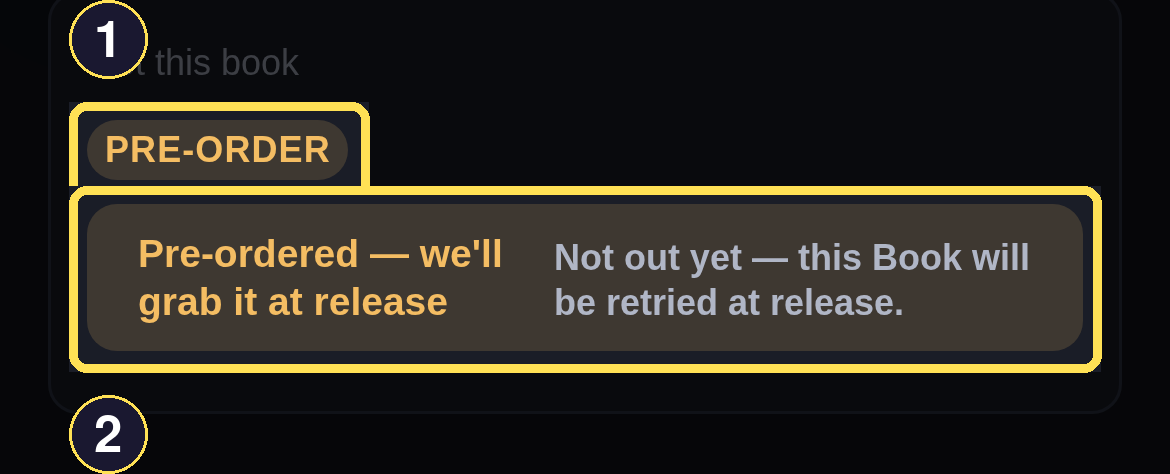
- The Pre-order flag marks a Book that hasn't released yet.
- Pre-ordered — we'll grab it at release replaces the usual queued wording.
A request smutslut couldn't complete shows Couldn't get it with the reason underneath — for example Something went wrong on our side while fetching it. We'll try again tomorrow. — plus See what happened in your Issues → when the failure opened one. Choose Try again to retry it; that starts a fresh attempt rather than resuming the old one.
Request a series
Desktop
- Open a Series and choose Request Series. Its (2 tickets) readout counts every released Book you're missing before you commit — owned Books are skipped rather than requested again.
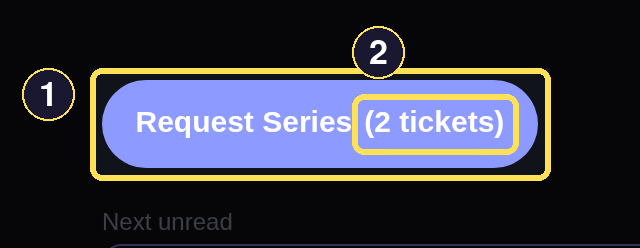
- Request Series covers every released Book you're missing.
- (2 tickets) shows what the whole series will cost before you commit.
- The button's place is taken by Getting series, counting how many members have settled so far. Once every requested member is available it reads Ready; if the batch finishes with something deferred, failed, or cancelled instead, it reads All settled.
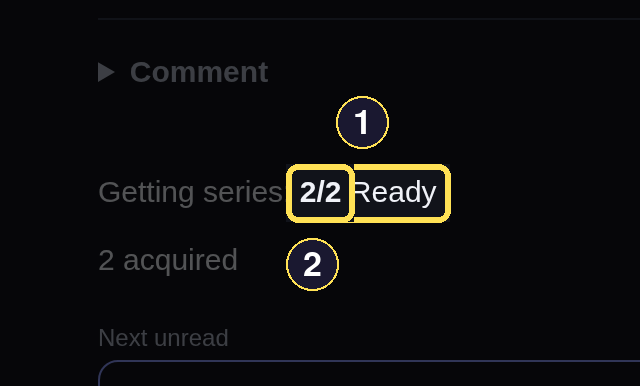
- Ready confirms every requested member is now available.
- The 2/2 count next to Getting series confirms both members settled.
Phone
- Open the Series from a Book or search result, then choose Request Series. Its (2 tickets) readout counts every released Book you're missing before you commit — owned Books are skipped rather than requested again.
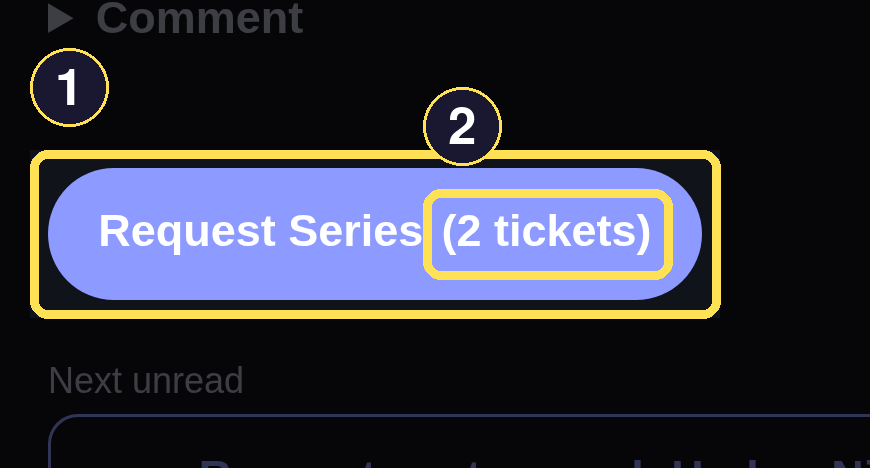
- Request Series covers every released Book you're missing.
- (2 tickets) shows what the whole series will cost before you commit.
- The button's place is taken by Getting series, counting how many members have settled so far. Once every requested member is available it reads Ready; if the batch finishes with something deferred, failed, or cancelled instead, it reads All settled.
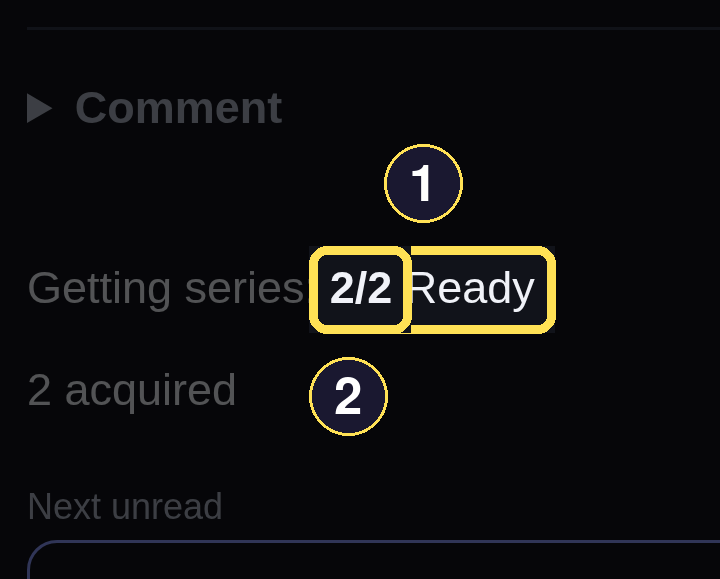
- Ready confirms every requested member is now available.
- The 2/2 count next to Getting series confirms both members settled.
Ready means every requested member became available. All settled means the batch finished with at least one member deferred, failed, or cancelled — check the member list below the count for which one and why.
What the request confirmation means
The confirmation dialog is a scarcity guard, not a promise that this exact click spends a ticket — only a successful fetch actually does. It fires on the risk of spending one, not the certainty: requesting an unreleased Book (which becomes a pre-order) shows the same Request this book? Uses one ticket. warning as any other Request, even though a pre-order doesn't draw on the meter unless it later succeeds. A Book page, Series page, or Shelf page reads live headroom and skips the dialog once it's at 20 tickets or above. Two pages never do: the standalone Bookmarks page (reached from More) always confirms, and the Recently Catalogued Shelf shows each request's status only, with no acquire control of its own, so this dialog never applies there at all.
Cancel a request
Desktop
- While a request shows Queued…, Searching…, or Fetching…, choose Cancel request and confirm Cancel this request?. The control then reads Cancelled by you, with Request again if you want to restart it later.
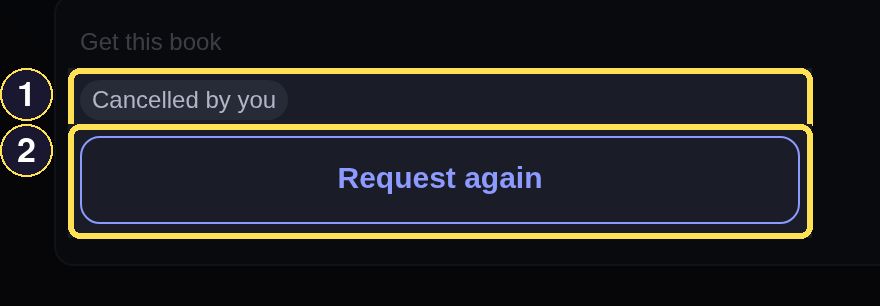
- Cancelling shows Cancelled by you.
- Request again submits a fresh request for the same Book.
Phone
- While a request shows Queued…, Searching…, or Fetching…, choose Cancel request and confirm Cancel this request?. The control then reads Cancelled by you, with Request again if you want to restart it later.
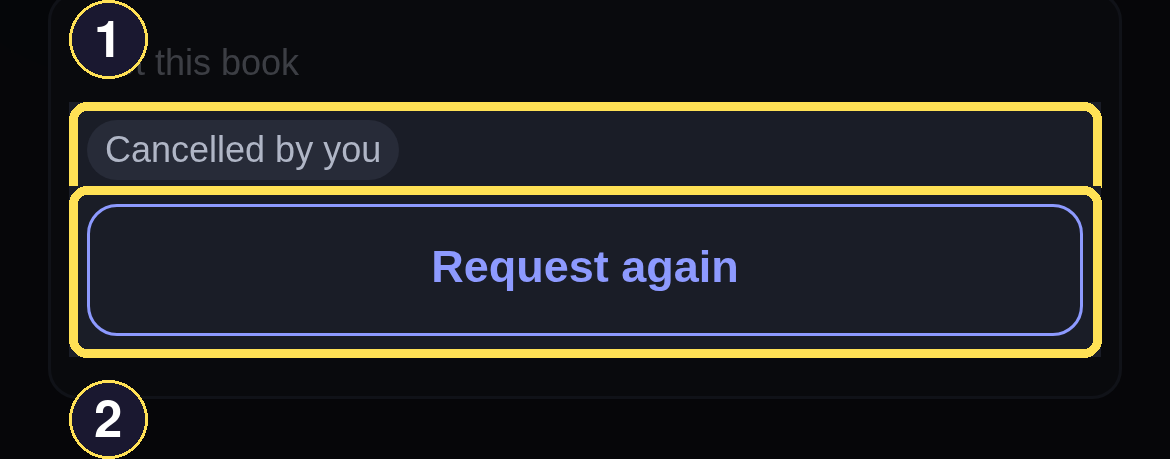
- Cancelling shows Cancelled by you.
- Request again submits a fresh request for the same Book.
A request smutslut gave up on automatically — rather than one you cancelled yourself — reads Request expired with its own reason attached instead of Cancelled by you. Review every past cancellation, yours or automatic, through More and Cancelled requests.