Navigate the App
This is the reference for every navigation control in smutslut: the nav destinations, the More sheet, search, notifications, and your account. For what a destination actually contains once you're there, see its own article.
Find your way around
Desktop
At a wide enough window, five destinations sit inline in the header: Shelf, Library, Search, Discover, and More. The one matching the page you're on is underlined.

- The header nav carries all five destinations at once, with More for everything else.
Phone
The same five destinations — Shelf, Library, Search, Discover, and More — sit in a bottom tab bar instead, always in reach with your thumb. Scroll down and both the top bar and the tab bar step aside to give the page more room; scroll up and they come back.
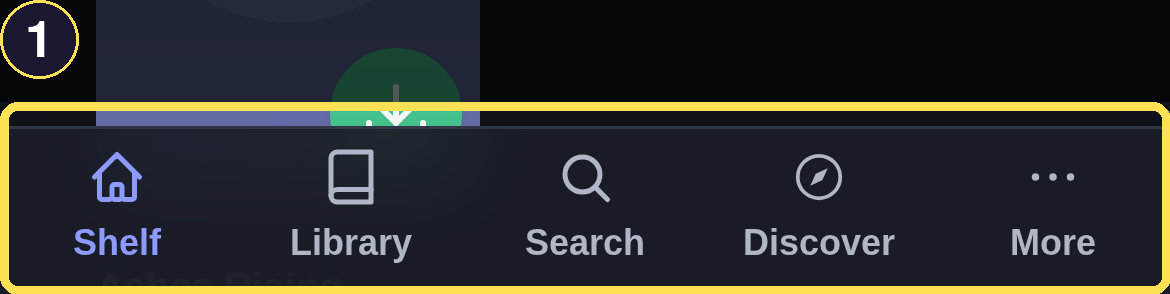
- The bottom tab bar carries all five destinations at once, with More for everything else.
Open the More sheet
Desktop
- Choose More in the header nav to open the same sheet a phone reaches from its tab bar. Near the top, Lists opens your manual Shelves and Saved Searches; Bookmarks opens Books you've saved for later, and My Issues opens reports you've filed.
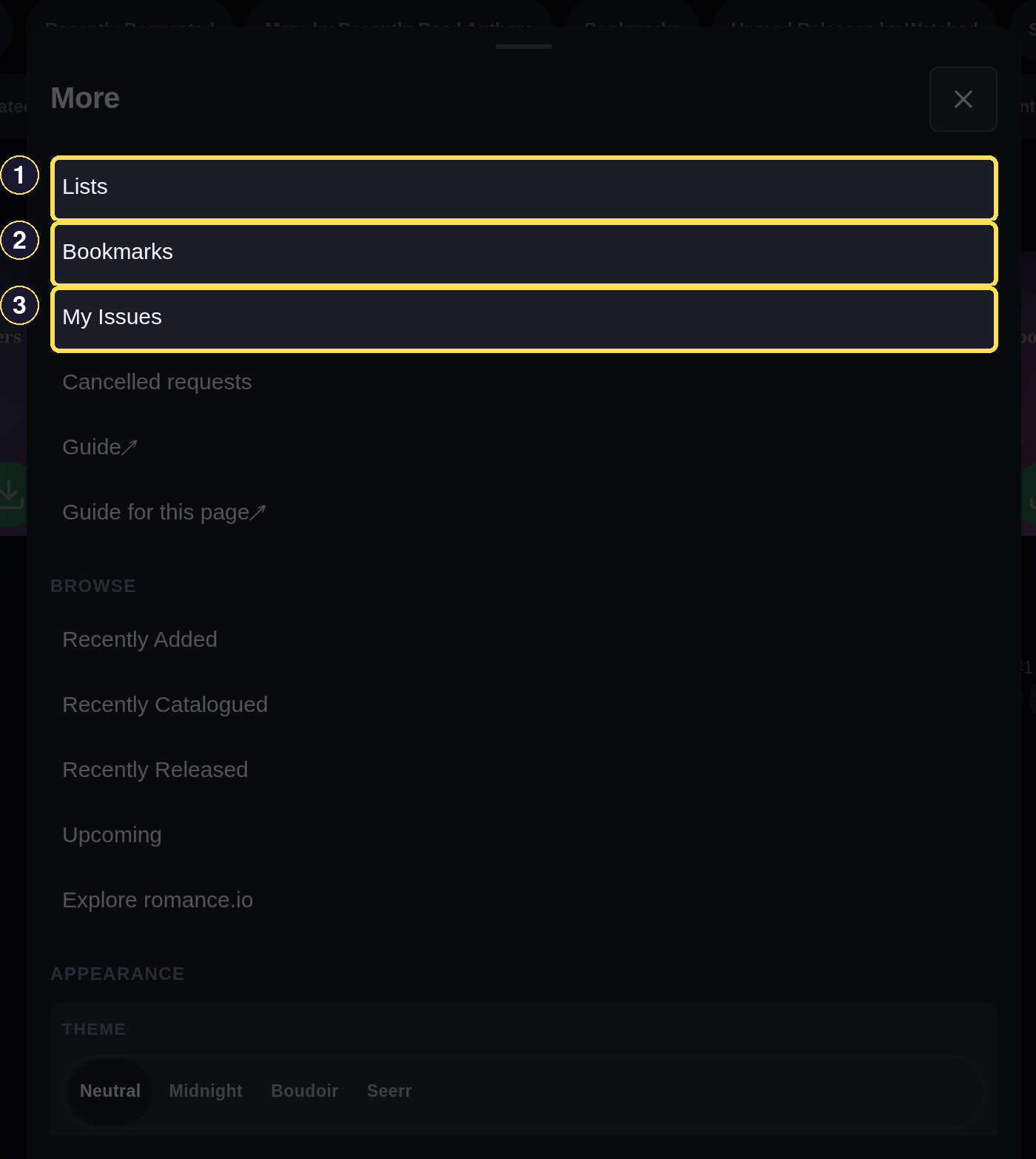
- Lists opens your manual Shelves and Saved Searches.
- Bookmarks opens Books you've saved for later.
- My Issues opens reports you've filed.
- Scroll down inside the sheet for Appearance — your Theme and light/dark Mode, without leaving the page you were on.
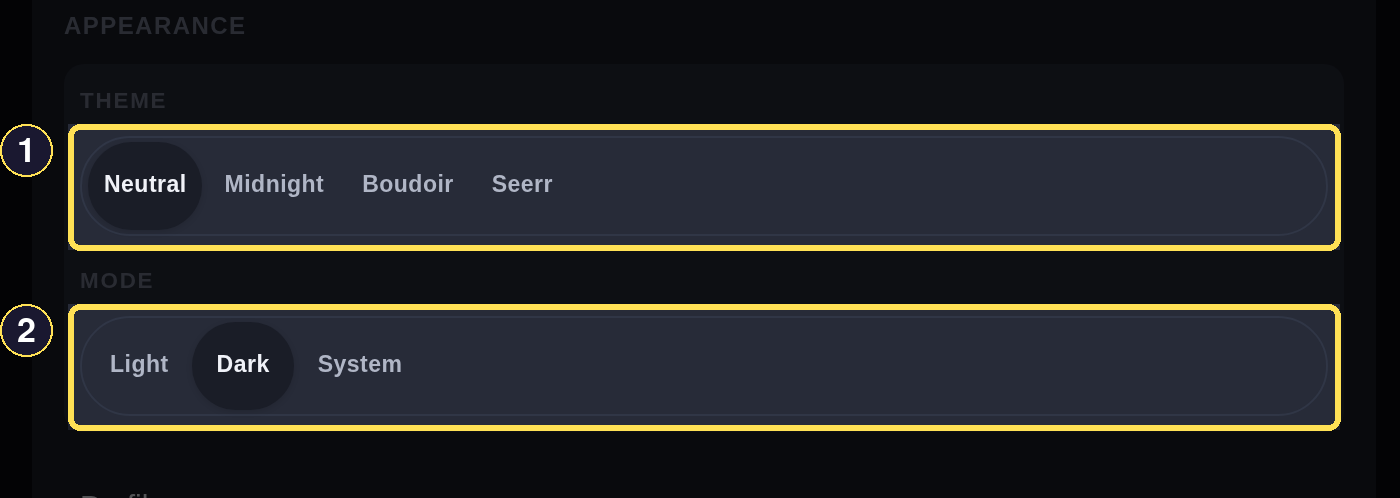
- Theme switches between Neutral, Midnight, Boudoir, and Seerr.
- Mode switches between Light, Dark, and System.
Below Appearance, a second Profile link and Sign out close the sheet. The same sheet also has Cancelled requests, Guide, Guide for this page, and a Browse group (Recently Added, Recently Catalogued, Recently Released, Upcoming, Explore romance.io).
Phone
- Choose More in the bottom tab bar to open the same sheet a desktop reaches from its header. Near the top, Lists opens your manual Shelves and Saved Searches; Bookmarks opens Books you've saved for later, and My Issues opens reports you've filed.
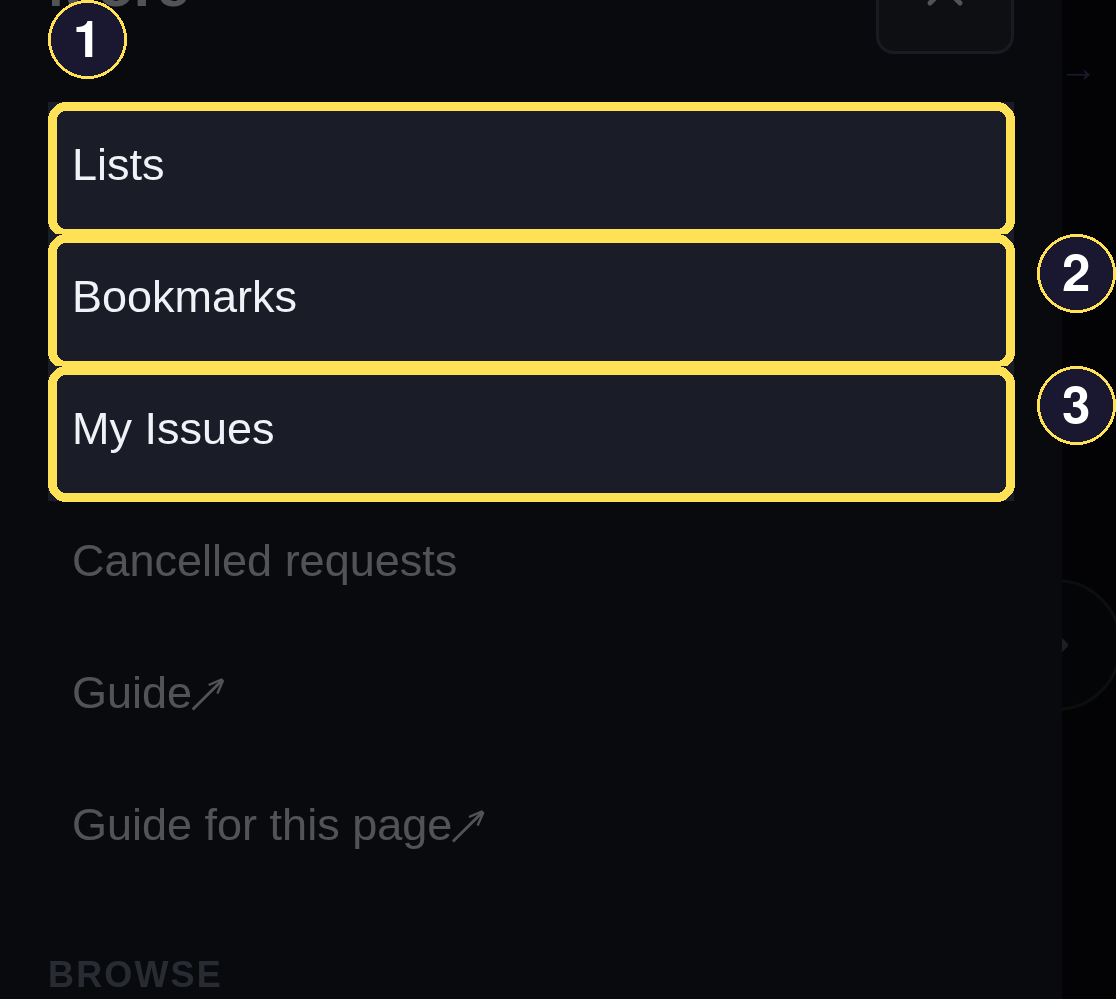
- Lists opens your manual Shelves and Saved Searches.
- Bookmarks opens Books you've saved for later.
- My Issues opens reports you've filed.
- Scroll down inside the sheet for Appearance — your Theme and light/dark Mode, without leaving the page you were on.
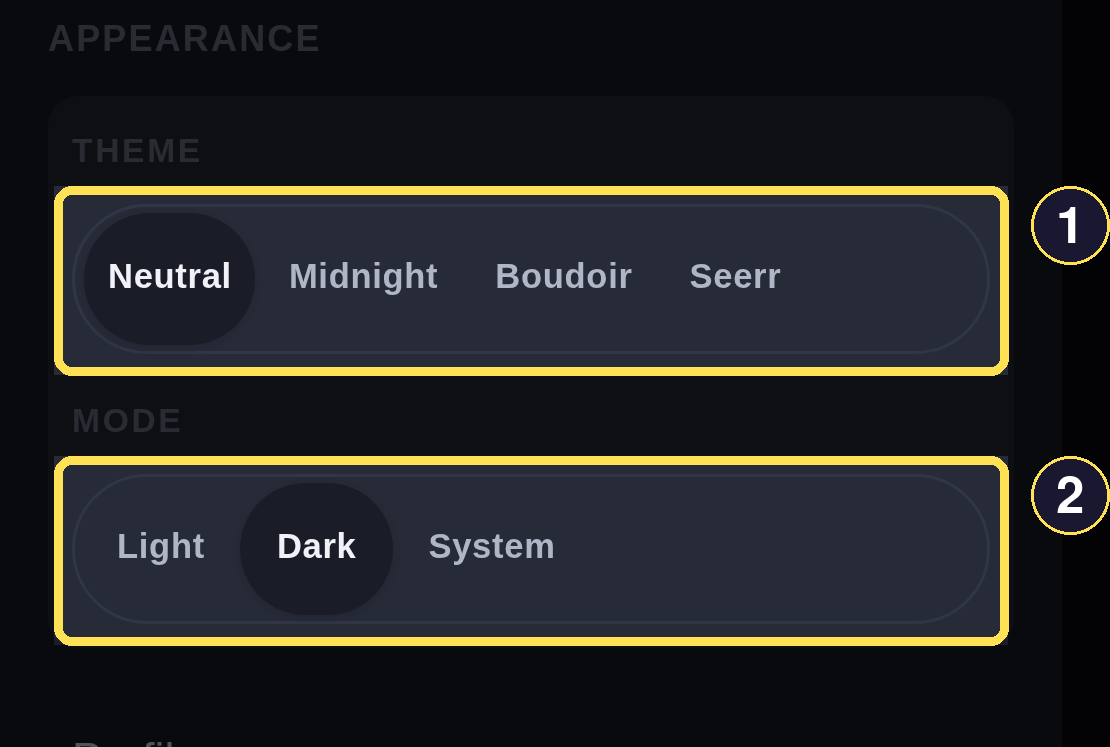
- Theme switches between Neutral, Midnight, Boudoir, and Seerr.
- Mode switches between Light, Dark, and System.
Below Appearance, a second Profile link and Sign out close the sheet. The same sheet also has Cancelled requests, Guide, Guide for this page, and a Browse group (Recently Added, Recently Catalogued, Recently Released, Upcoming, Explore romance.io).
Search from anywhere
Desktop
At a wide enough window, the header gives you two paths into Search.
-
Choose Search in the header nav to open the full results page directly.
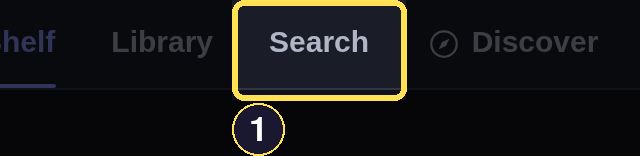
- Search in the header nav opens the full results page directly.
-
Type in Search the Catalog to narrow matches without leaving the page you are on.
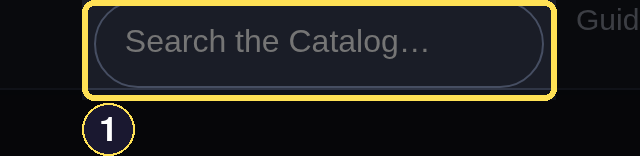
- Search the Catalog narrows results as you type, without leaving the page.
Phone
There is no search box in the header — below that width it is hidden outright, not just tucked away. Choose the Search tab in the bottom bar instead; it opens the same results page the header's Search reaches on a wider screen.
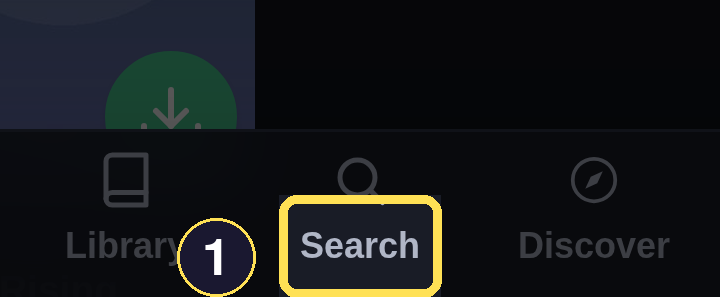
- The Search tab is the only search entry point on a narrow phone window.
Check notifications
Desktop
- Select the bell labelled Notifications in the top-right corner to open your list; a number on it means you have unread notifications.

- The bell, labelled Notifications, opens your list; a number appears when you have unread ones.
Phone
- Select the bell labelled Notifications in the top-right corner to open your list; a number on it means you have unread notifications.

- The bell, labelled Notifications, opens your list; a number appears when you have unread ones.
Open your account
Desktop
- Select the round avatar labelled Profile in the top-right corner to open your account page directly.
- The round avatar, labelled Profile, opens your account page directly.
Phone
- Select the round avatar labelled Profile in the top-right corner to open your account page directly.
- The round avatar, labelled Profile, opens your account page directly.
Related tasks
- Find a Book — reading the results once Search opens them.
- Profile and Appearance — the Theme and Mode controls in depth, plus your account details.
- Notifications — what the bell's unread count means and how to clear it.
- Reader Glossary — every term this guide uses.